ONLYOFFICE apps for Dropbox and Box now come with AI Tools and plugins
The updated ONLYOFFICE apps for Dropbox and Box arrive with AI Tools and plugin support for editors. With the new versions, users can extend their editing experience with AI-powered features and use third-party tools without leaving their documents.
AI Tools: get assistance while working on your files
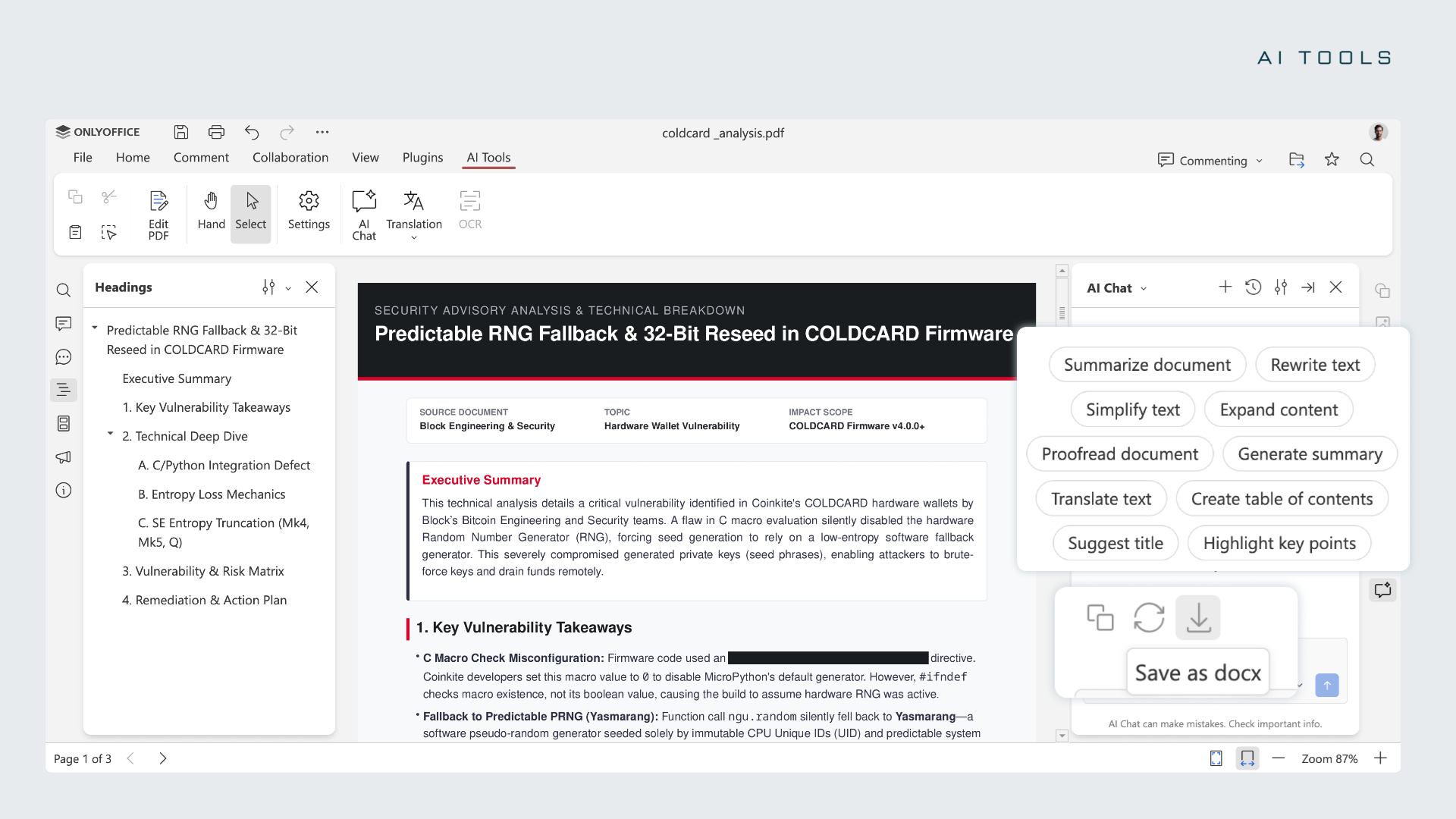
With the latest updates to the Dropbox and Box integrations, users can now access ONLYOFFICE AI Tools, introduced in ONLYOFFICE Docs 10.0, directly in the editors. They bring AI-powered assistance to everyday work with text documents, spreadsheets, presentations, and PDFs.
AI Tools understand the structure and context of your files. They work with elements such as headings, tables, and fields rather than treating the document as plain text.
With AI Tools, users can:
- Work with text: summarize lengthy documents, rewrite and simplify paragraphs, translate content, proofread text, highlight key points, and generate titles or tables of contents.
- Analyze data: create and explain formulas, identify trends, build forecasts and Pivot Tables, clean up inconsistent data, detect outliers, and fill in missing values.
- Prepare presentations: generate outlines, suggest slide titles and visual ideas, organize content, and create speaker notes.
- Get more from PDFs: ask questions about file contents, generate summaries, draft emails based on document information, and redact sensitive data.
- Customize AI assistance: in Document Editor, save frequently used prompts in AI Chat, create Quick AI actions for one-time tasks, and set up AI assistants that respond to document changes as you work.
How to connect AI Tools
To start using AI-powered features, you need to connect an AI provider* and configure the models you want to use. ONLYOFFICE supports a range of providers, including OpenAI, Google AI, Anthropic, DeepSeek, Mistral, Groq, OpenRouter, Ollama, and a custom provider. This allows you to choose the models that best suit your needs, including local models.
*Please note: An API key is required to connect an AI provider. Using AI models may involve additional costs, depending on the provider and its pricing policy.
Step 1. Open a document in Dropbox or Box
Sign in to your Dropbox or Box account. Open a document, spreadsheet, presentation, or PDF in the ONLYOFFICE editor using the Open with ONLYOFFICE button.
If the ONLYOFFICE app is not installed yet, you can add it from the official app marketplace: Dropbox App Center or Box App Center.
Step 2. Add AI model
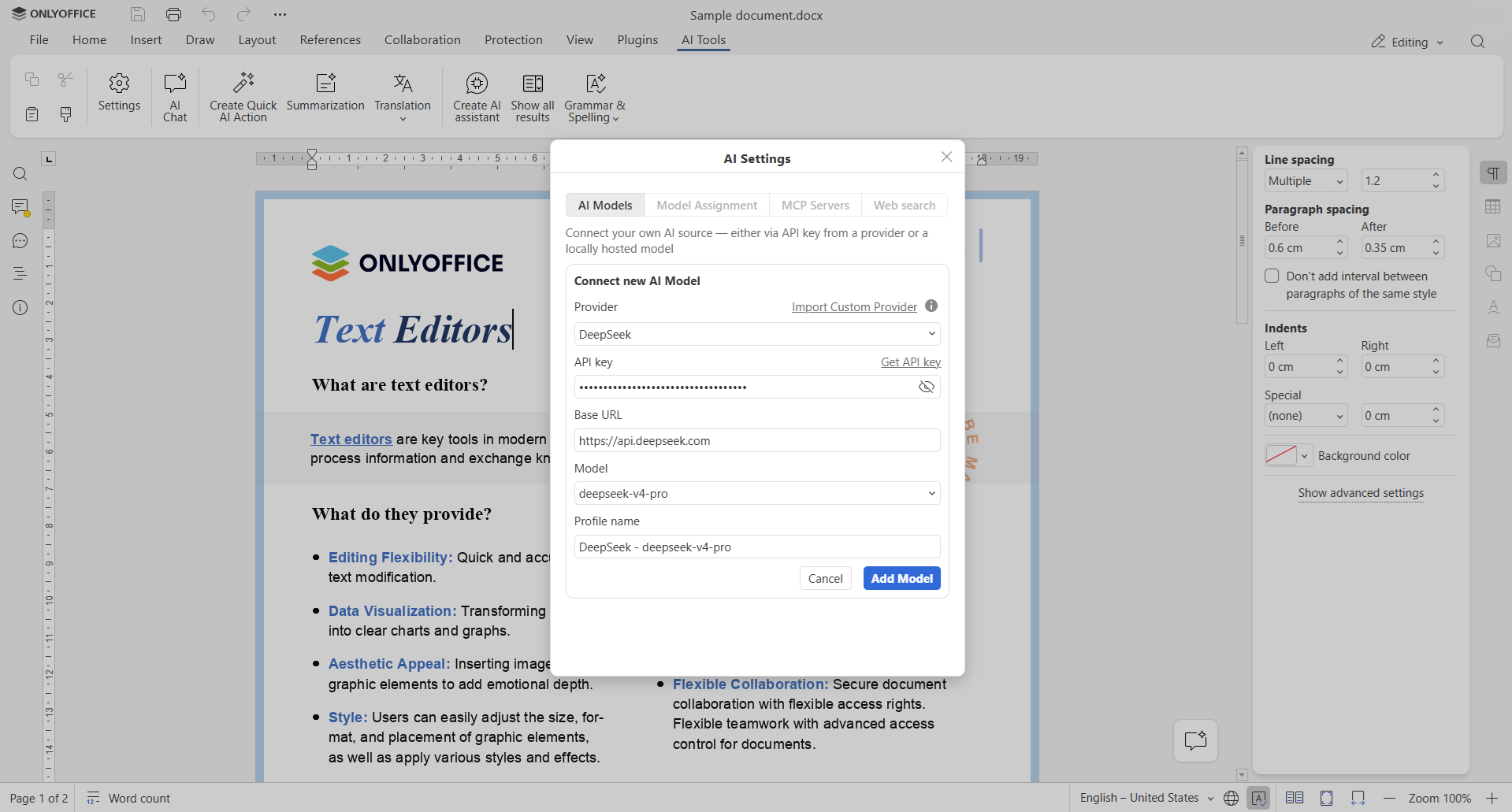
Find the AI Tools tab on the top toolbar and open Settings. To connect an AI provider, click Add model, select a provider, enter an API key, and choose an AI model. Once done, confirm by clicking Add model.
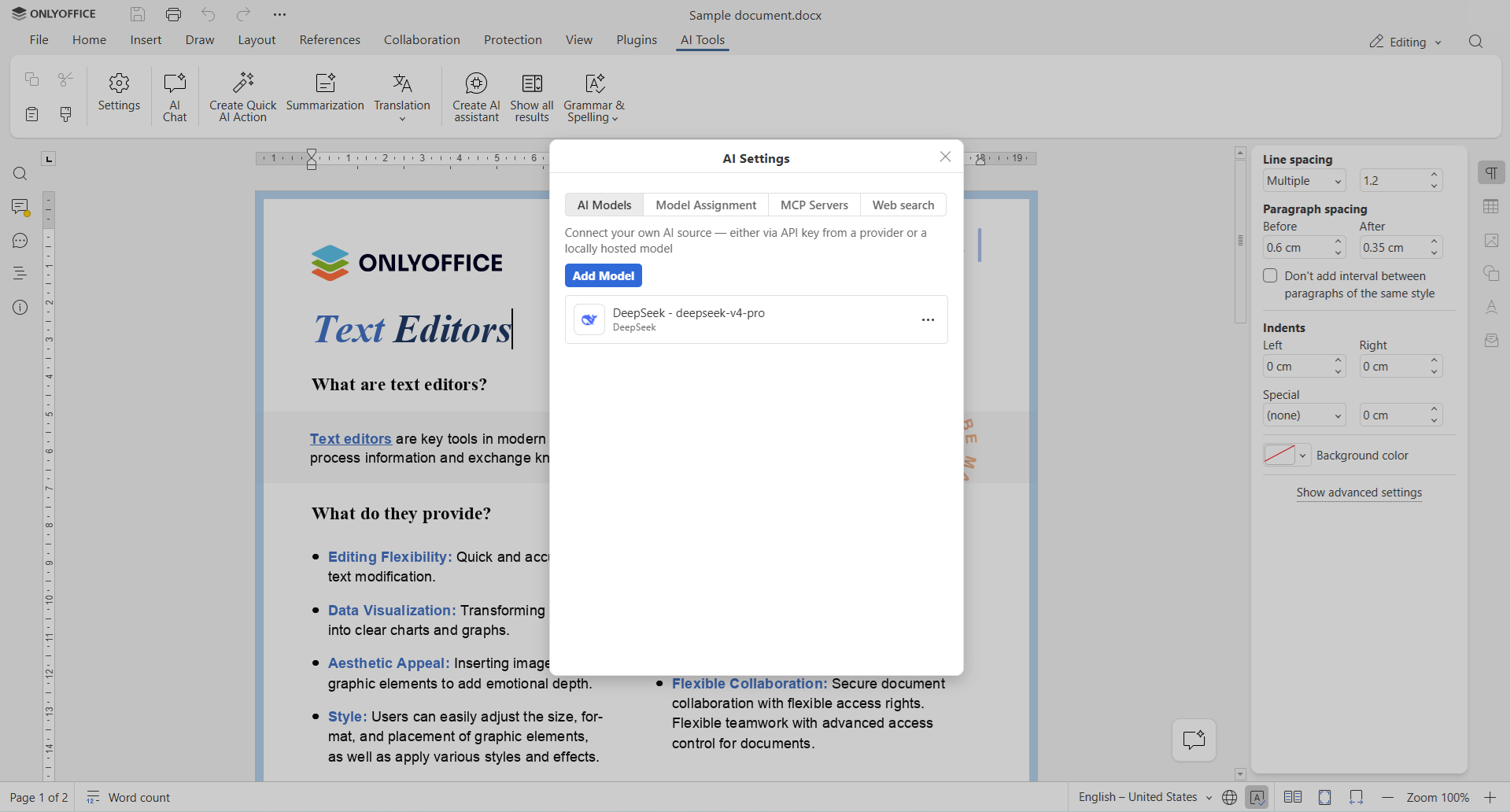
In the same way, you can add several AI models. All connected models will appear in the list, where you can edit their settings at any time.
Step 3. Assign models to different tasks
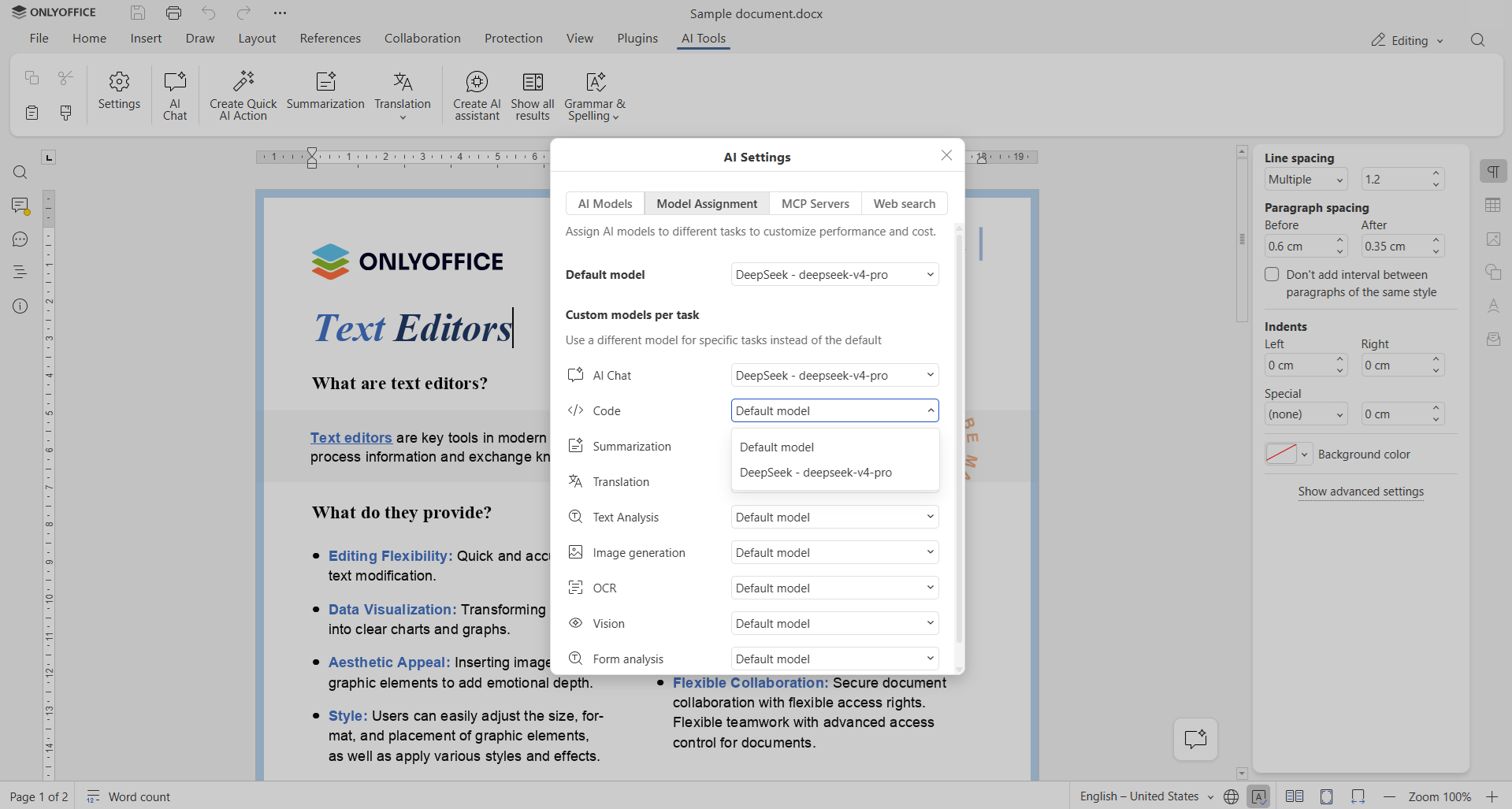
Switch to the Model Assignment tab. Select the default model and the models should handle specific tasks. These include AI chat, code, summarization, translation, text analysis, image generation, OCR, vision, and form analysis.
You can assign different models to different tasks depending on their capabilities.
Step 4. Configure MCP servers and Web Search (optional)
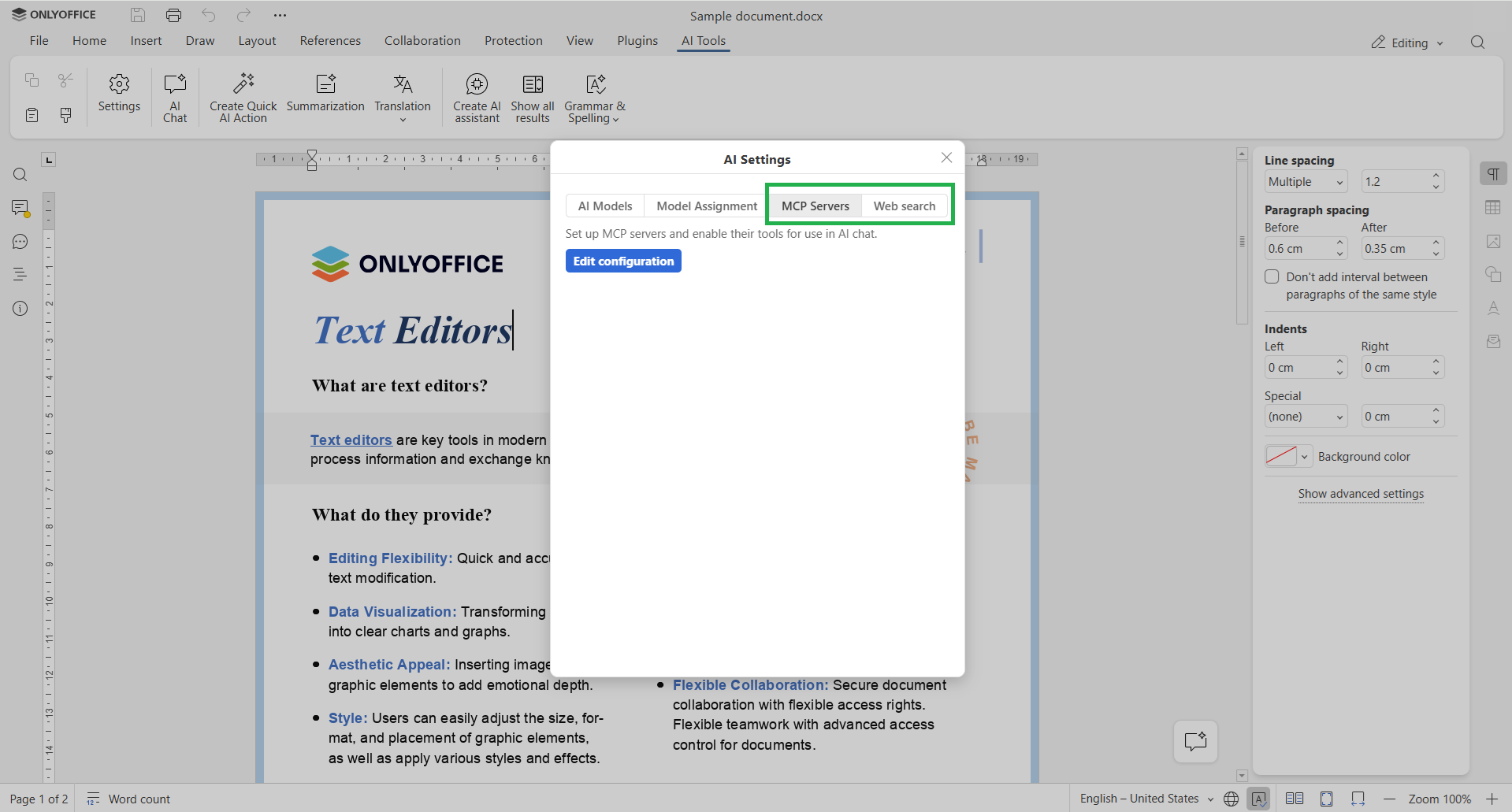
You can also connect MCP servers and enable Web Search to extend your AI assistant’s capabilities. MCP servers give AI access to additional tools and external services, while Web Search allows it to find information online.
Both options are optional and can be configured in the corresponding tabs in AI settings.
How to use AI Tools
AI chat. Go to AI Tools -> AI Chat to open the conversation interface. You can choose a suggested prompt or describe the task in your own words.
Continue the conversation with follow-up questions and use the generated response in your work.
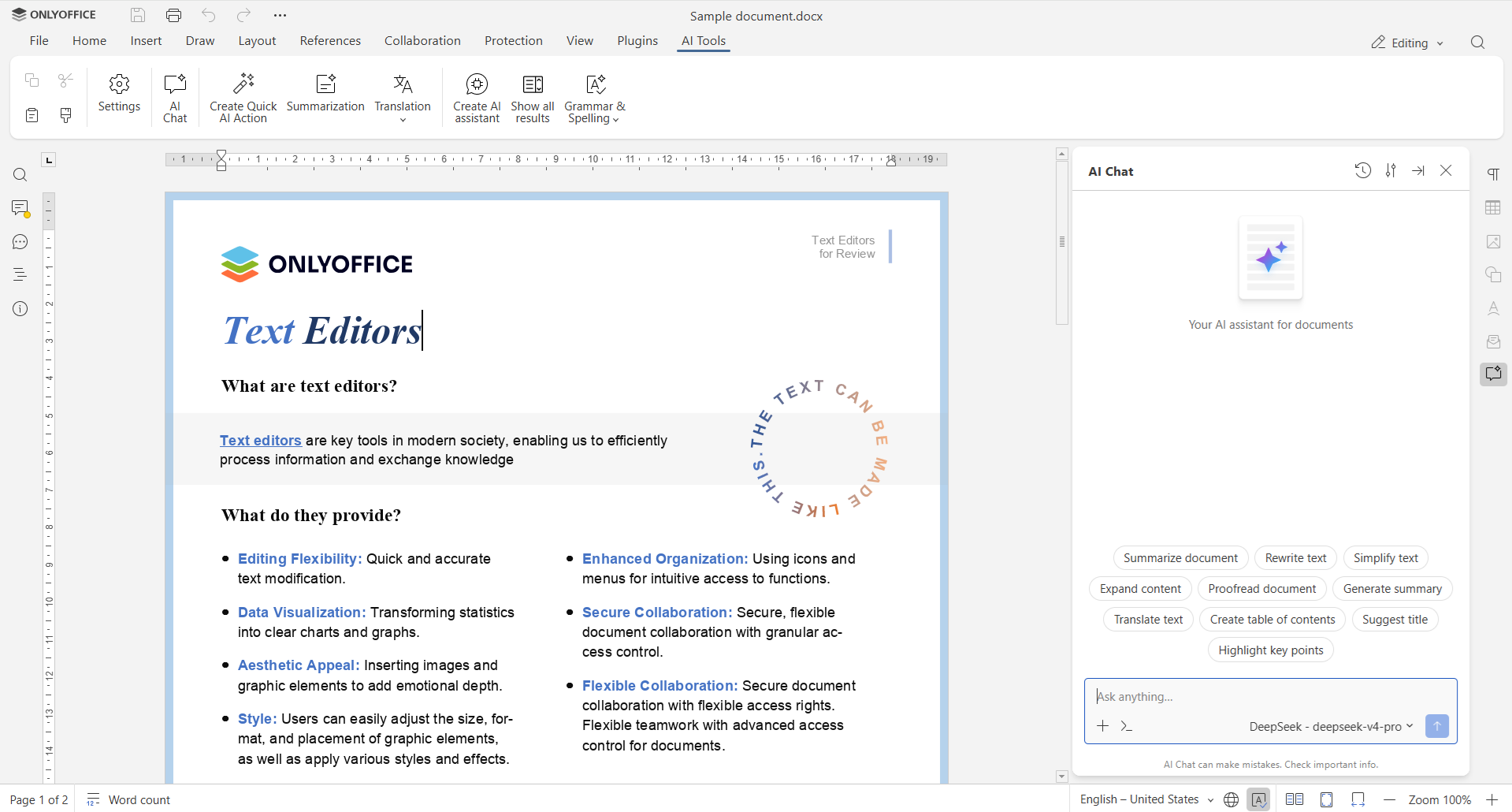
Quick AI actions. Add Quick actions with your own prompt to perform one-time tasks, such as changing the tone of a text, correcting grammar, or rewriting a selected passage.
AI assistants. Create AI assistants for tasks you perform regularly. They work continuously and respond to changes in your document as you edit, helping you with tasks such as proofreading or reviewing content.
Please note: Quick AI actions and AI assistants are currently available only in the Document Editor.
Plugins: extend editor functionality with third-party services
The updated integrations now support plugins, allowing you to use third-party services directly in the ONLYOFFICE editor window without switching between applications.
With plugins, you can add YouTube videos to documents and presentations, create diagrams and flowcharts with draw.io, check spelling and grammar with LanguageTool or Antidote, translate text with DeepL, and use other services to make your work easier.
Browse the available plugins in our marketplace.
How to install a plugin
Plugins can be installed directly from the Plugin Manager in the ONLYOFFICE editors.
Step 1. Open the Plugins tab
Open your file in the corresponding ONLYOFFICE editor and go to the Plugins tab on the top toolbar.
Step 2. Open Plugin Manager
Click Plugin Manager to browse the available extensions. You can explore the full catalog, search for a particular plugin, or browse plugins by category.
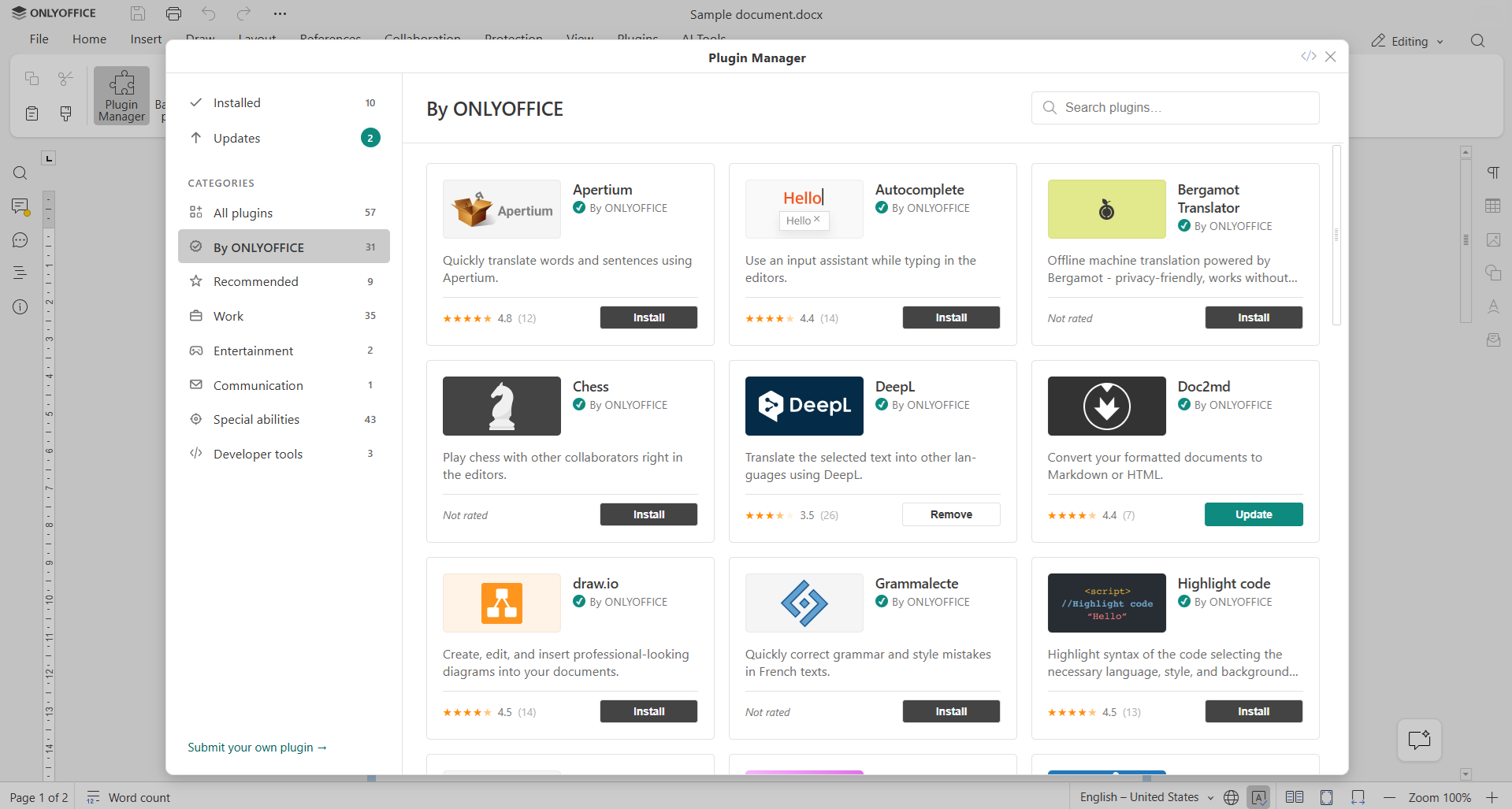
Step 3. Install the plugin
Find the plugin you want to use and click Install. Once installed, it will become available in the editor. Depending on the plugin, you may also need to activate it or configure its settings.
Get started with ONLYOFFICE in Dropbox and Box
The updated integrations make it possible to use plugins directly in the ONLYOFFICE editors when working with files stored in Dropbox and Box. You can access additional tools, connect supported AI services, and handle more tasks without leaving your document.
Update your integration or install it from the corresponding app directory:
ONLYOFFICE FOR DROPBOX ONLYOFFICE FOR BOX
FAQ
Which versions of the Dropbox and Box integrations support AI Tools and plugins?
AI Tools and plugins are available in Dropbox integration version 1.2.3 and Box integration version 1.2.2. AI Tools require ONLYOFFICE Docs version 10.0 or later.
Do I need to configure an AI provider to use ONLYOFFICE AI Tools?
Yes. You need to connect an AI provider and configure at least one model before using AI-powered features. Please note that providers may require a paid subscription or charge for API usage. Check the provider’s pricing policy before connecting a model.
Can I use AI models from different providers?
Yes. You can connect multiple AI models, including models from different providers, and assign them to specific tasks such as chat, translation, summarization, or text analysis.
Do I need to install ONLYOFFICE to use it in the Dropbox or Box integration?
No. The official apps are based on a pre-configured tenant of ONLYOFFICE Cloud and don’t require any additional configuration.
Create your free ONLYOFFICE account
View, edit and collaborate on docs, sheets, slides, forms, and PDF files online.