Best Linux PDF editors to try in 2026
PDF files are everywhere — contracts, invoices, research papers, technical manuals. The format remains the gold standard for sharing documents that look identical on every device. The challenge for Linux users has historically been finding a reliable editor to match the power of tools like Adobe Acrobat. That’s no longer the case.
In 2026, the Linux PDF ecosystem is mature and diverse. Whether you need to fix a typo, redact sensitive data, merge files, or build interactive forms, there’s a tool that fits the job.
Why use a PDF editor for Linux?
PDFs are designed to be static, but that stability becomes a limitation when changes are needed. Common reasons to use a PDF editor include fixing errors without returning to the source file, annotating and reviewing documents, filling in forms, redacting confidential information, merging or splitting files, adding digital signatures, and converting PDFs to editable formats like DOCX.
Linux users don’t have access to the Windows version of Adobe Acrobat, but many alternatives today are free, open source, and fully capable for most workflows.
Best Linux PDF editors in 2026
1. ONLYOFFICE Desktop Editors
ONLYOFFICE Desktop Editors is a full office suite for Linux that includes a powerful built-in PDF editor. Unlike many tools that only support annotations, it allows real editing of PDF content.
In editing mode, you can modify text, adjust formatting, insert images, shapes, tables, and graphical elements, and manage pages by adding, deleting, or rotating them.
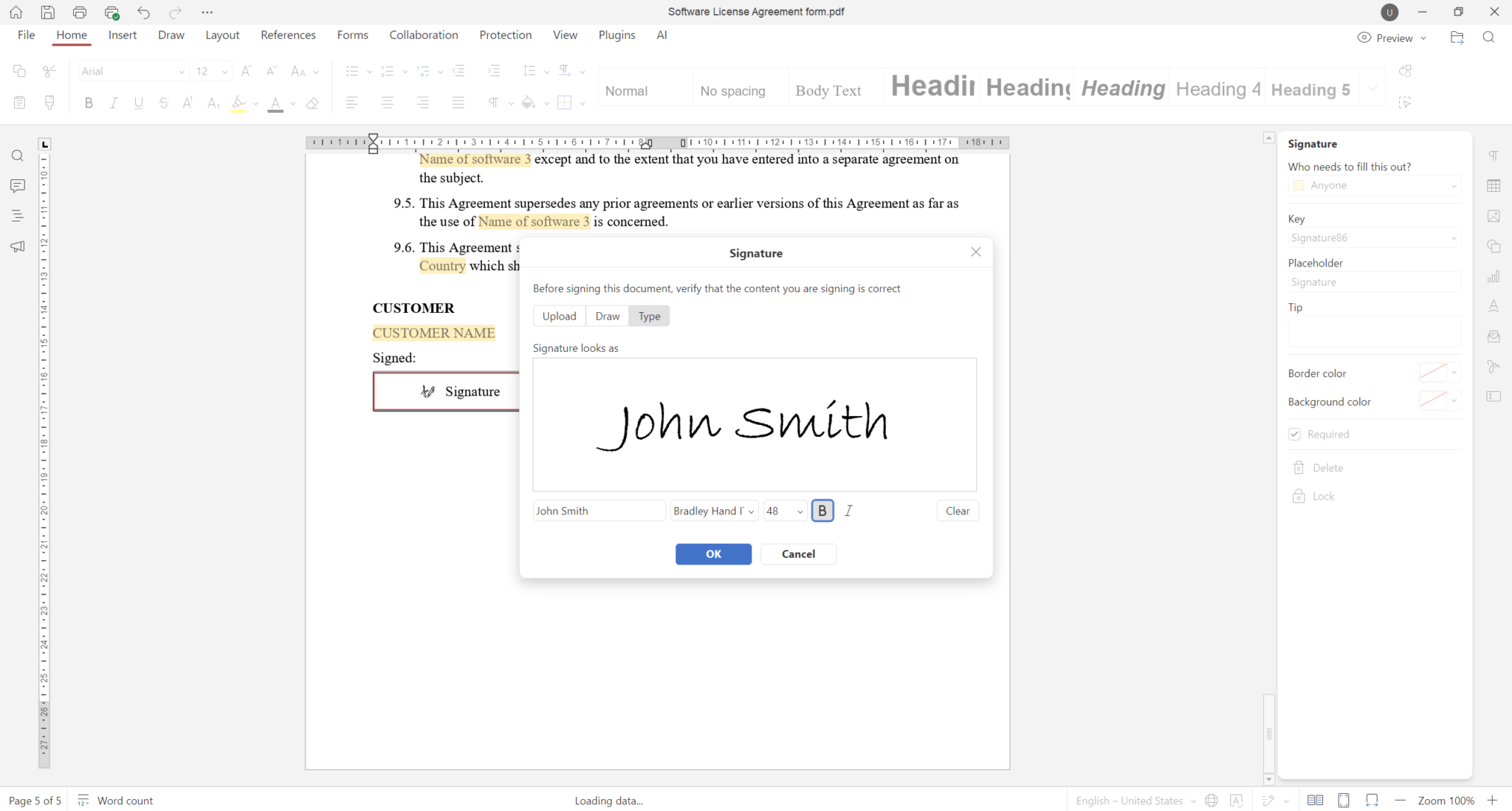
The editor is continuously evolving, with recent updates introducing a dedicated Redact tab to hide sensitive information, improved PDF form signature options, and a new multipage view that makes navigating documents more efficient and comfortable.
The built-in AI assistant integrates with services like ChatGPT, DeepSeek, and Google Gemini, and can enable AI-assisted OCR for scanned PDFs.
The editors are available as DEB/RPM packages, Snap, Flatpak, and AppImage, and support a wide range of Linux distributions, including ARM devices.
Key features
- Full text and layout editing in PDF editing mode
- Redaction with keyword-based search
- Fillable forms and digital signatures
- Annotation tools: highlights, comments, drawing, shapes
- AI-assisted OCR via integrated AI providers
- Broad Linux compatibility, including ARM
Supported formats: PDF, PDF/A, DOCX, ODT, XLSX, ODS, PPTX, ODP, EPUB, XPS, DjVu, HTML, TXT, RTF, CSV
Pros: Free and open source, real content editing, full office suite, frequent updates, wide platform support
Cons: Heavier than lightweight tools
Best use cases: Users who want a complete PDF editing solution with collaboration and AI features in one application.
2. LibreOffice Draw
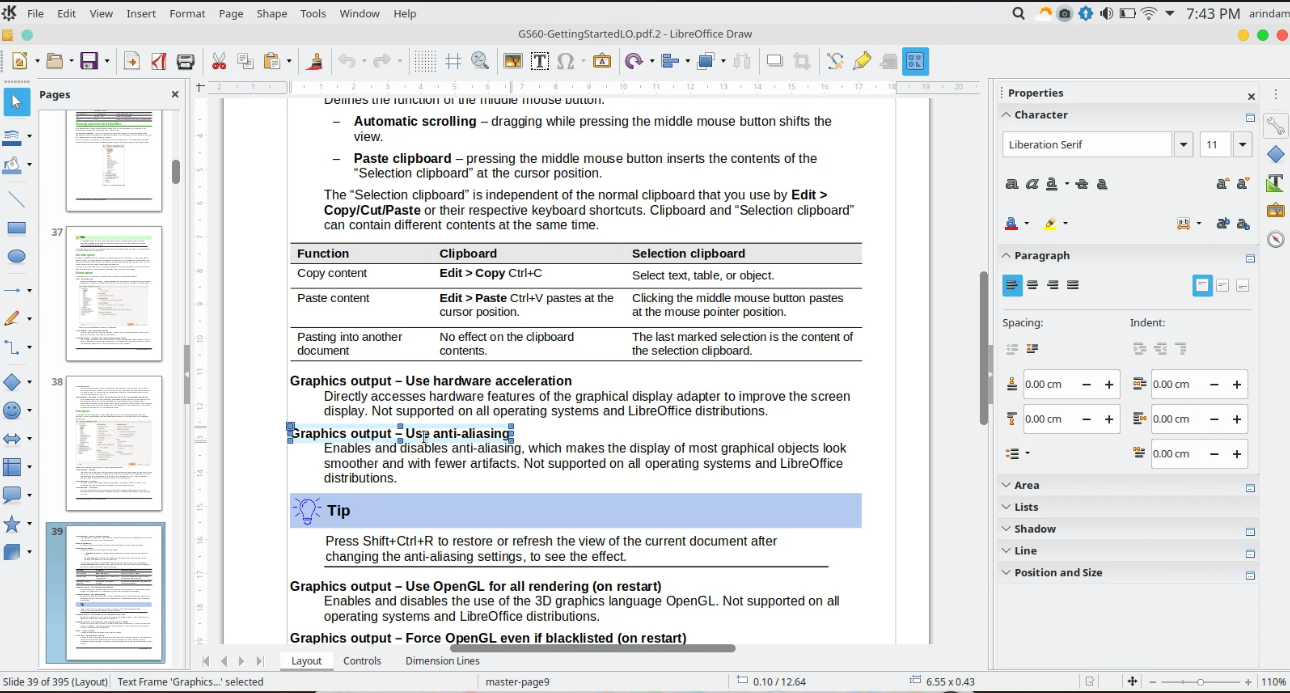
LibreOffice Draw is part of the LibreOffice suite, which comes pre-installed on most major Linux distributions including Ubuntu, Fedora, and Linux Mint. While not a dedicated PDF editor, it offers a practical workaround: when you open a PDF, it converts the content into editable vector objects and text boxes that you can manipulate directly.
This approach works reasonably well for simple edits — fixing a typo, swapping an image, or adjusting a label — but complex multi-column layouts or documents with custom fonts may not be preserved accurately. Fonts are often substituted, and tables or intricate formatting can shift. Once edits are done, you export the file back to PDF using the built-in export function.
Key features
- Edit text and graphic elements
- Add shapes, images, and text boxes
- Export back to PDF
- Pre-installed in many Linux systems
Supported formats: PDF, ODG, SVG, PNG, JPEG, BMP
Pros: Free, open source, widely available
Cons: Layout issues with complex PDFs, no dedicated annotation toolkit, font substitution problems
Best use cases: Quick edits on simple documents without installing extra software.
3. Okular
Okular is the default document viewer for the KDE Plasma desktop environment, developed and maintained by the KDE community. It is fast, stable, and supports a wide range of formats beyond PDF. While it does not allow editing of PDF content, it is one of the most capable annotation tools available on Linux.
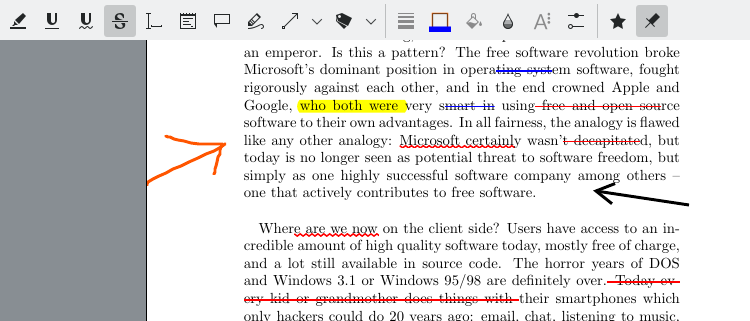
Reviewers and students will find its markup toolkit comprehensive: you can highlight text, add inline notes, draw shapes, apply stamps, and strikethrough or underline passages. Okular also lets you view and verify existing digital signatures, and its navigation tools — table of contents, page thumbnails, bookmarks — make it comfortable for working through long documents. It integrates well into both KDE and GNOME environments.
Key features
- Highlight, underline, strikethrough, notes, stamps, shapes
- View and verify digital signatures
- Multi-format support (PDF, ePub, DjVu, images)
- Navigation tools (table of contents, thumbnails)
Supported formats: PDF, ePub, DjVu, ODT, CHM, XPS, TIFF, PNG, JPEG, CBZ, CBR
Pros: Free, open source, lightweight, strong annotation tools
Cons: No text editing, no OCR or form creation
Best use cases: Document review and annotation.
4. Master PDF Editor
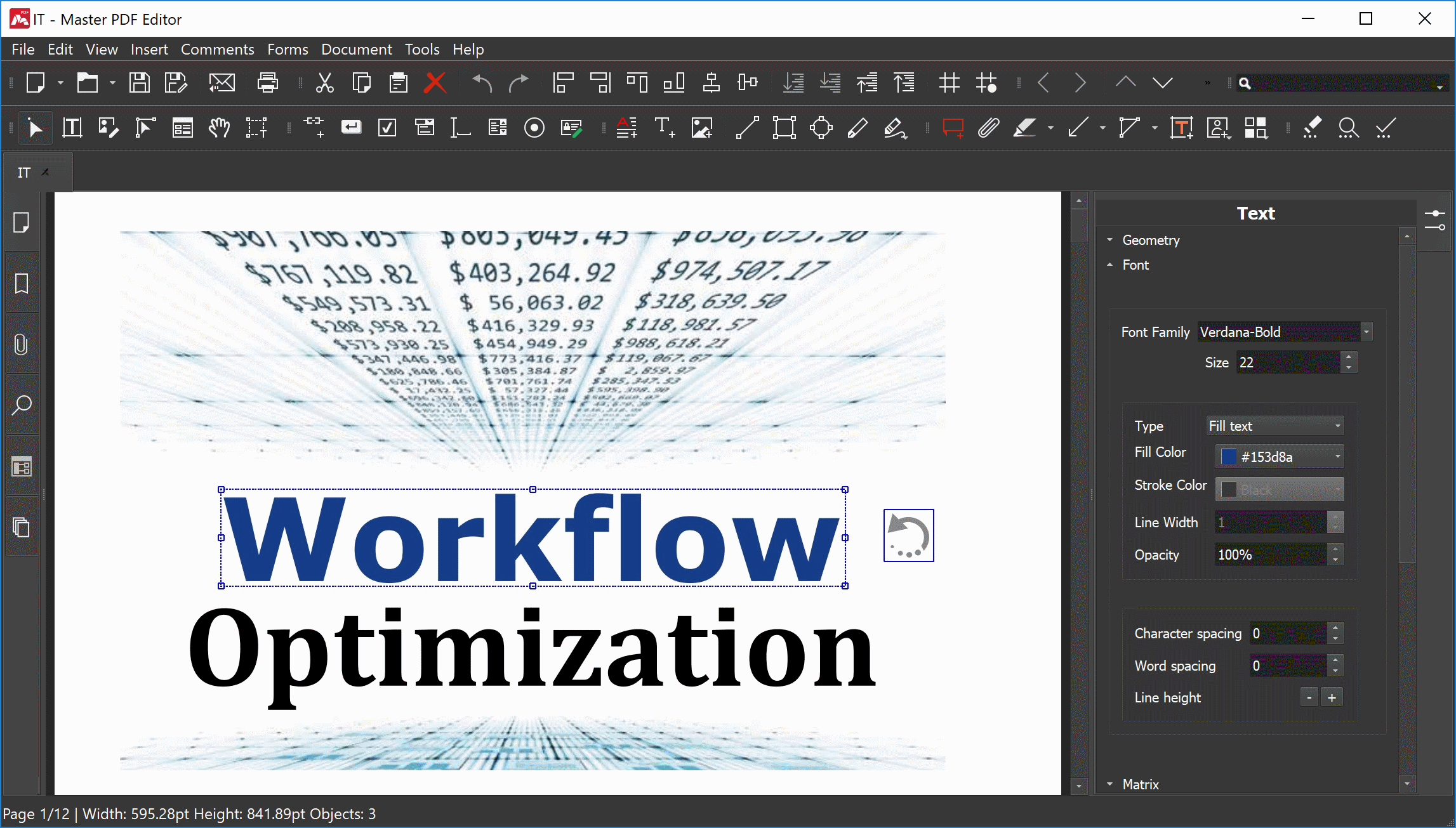
Master PDF Editor has been available for Linux for many years and remains one of the few proprietary tools with a native Linux build. Its interface will feel familiar to anyone who has used Adobe Acrobat or similar Windows tools, with a traditional toolbar-based layout and a comprehensive feature set.
It supports real text and image editing inside PDFs, built-in OCR for scanned documents, form creation, digital signatures, and encryption. Page management tools allow you to merge, split, and reorder documents.
Key features
- Text and image editing
- OCR for scanned documents
- Form creation tools
- Digital signatures and encryption
- Page management (merge, split, reorder)
Supported formats: PDF, PDF/A, XPS
Pros: Feature-rich, handles complex PDFs well
Cons: Proprietary, free version is limited
Best use cases: Users who need a full-featured PDF editor and are willing to pay.
5. PDF Arranger
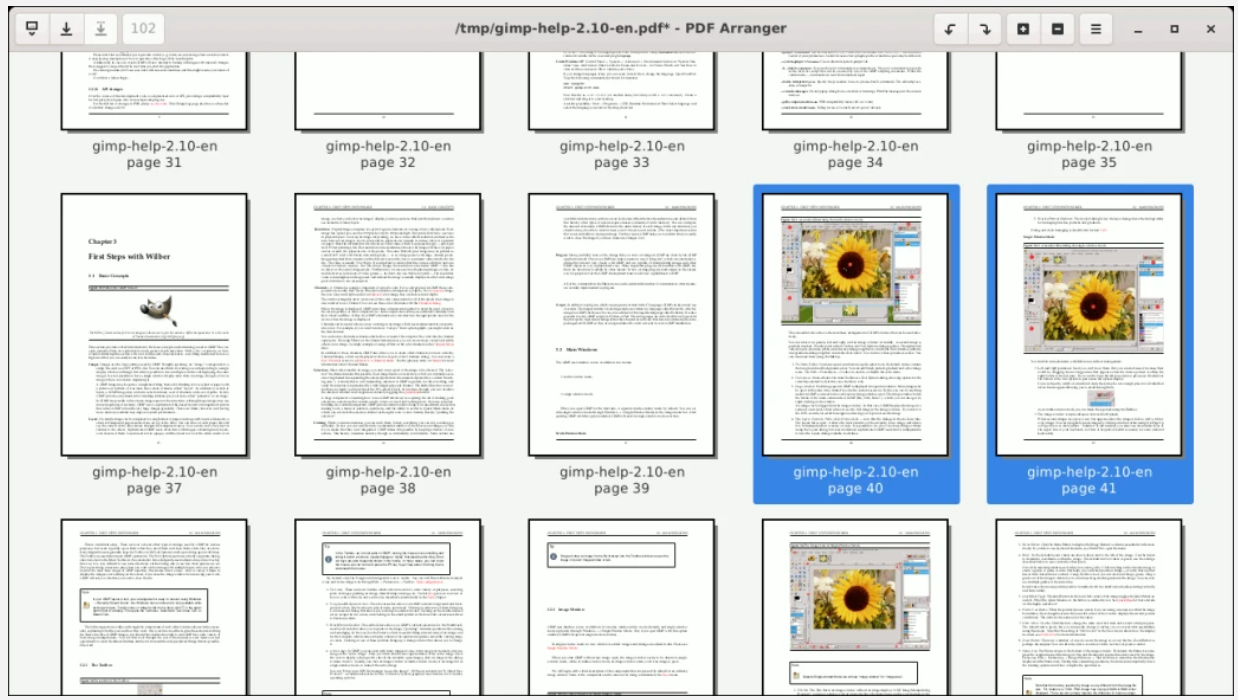
PDF Arranger is a lightweight tool focused only on page-level operations. It is particularly useful when you need to combine several PDFs into one, extract specific pages from a document, or clean up a scanned file before sharing it.
Key features
- Reorder pages visually
- Merge and split documents
- Rotate, crop, and delete pages
Supported formats: PDF
Pros: Free, open source, very lightweight, simple interface
Cons: No editing or annotation features
Best use cases: Reorganizing and combining PDF files.
6. Xournal++
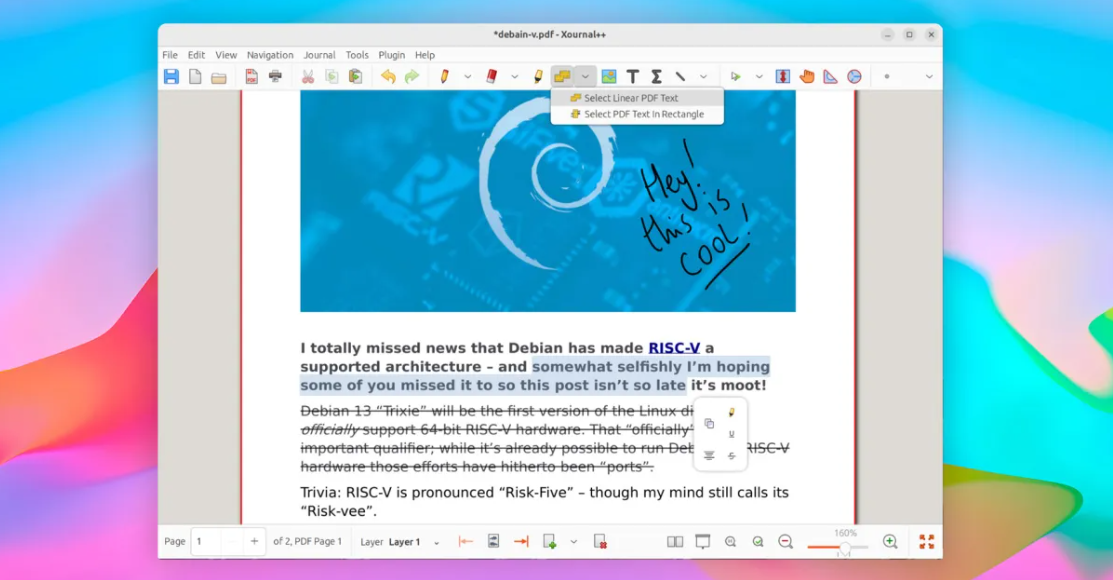
Xournal++ started as a tool for taking handwritten notes on Linux, and has evolved into a capable annotation layer for PDFs. When you open a PDF, it appears as a fixed background and you write or draw on top of it using layers — similar to placing a transparent sheet over a printed document.
It is particularly popular among students and researchers who use drawing tablets or stylus-enabled devices, as it supports pressure sensitivity and fine-grained stroke control.
Key features
- Freehand drawing and notes
- Text and image insertion
- Layer-based annotation
- Stylus and pressure support
Supported formats: PDF, XOJ
Pros: Free and open source, excellent for handwriting
Cons: No text editing in PDFs
Best use cases: Students and tablet users annotating documents.
7. Inkscape
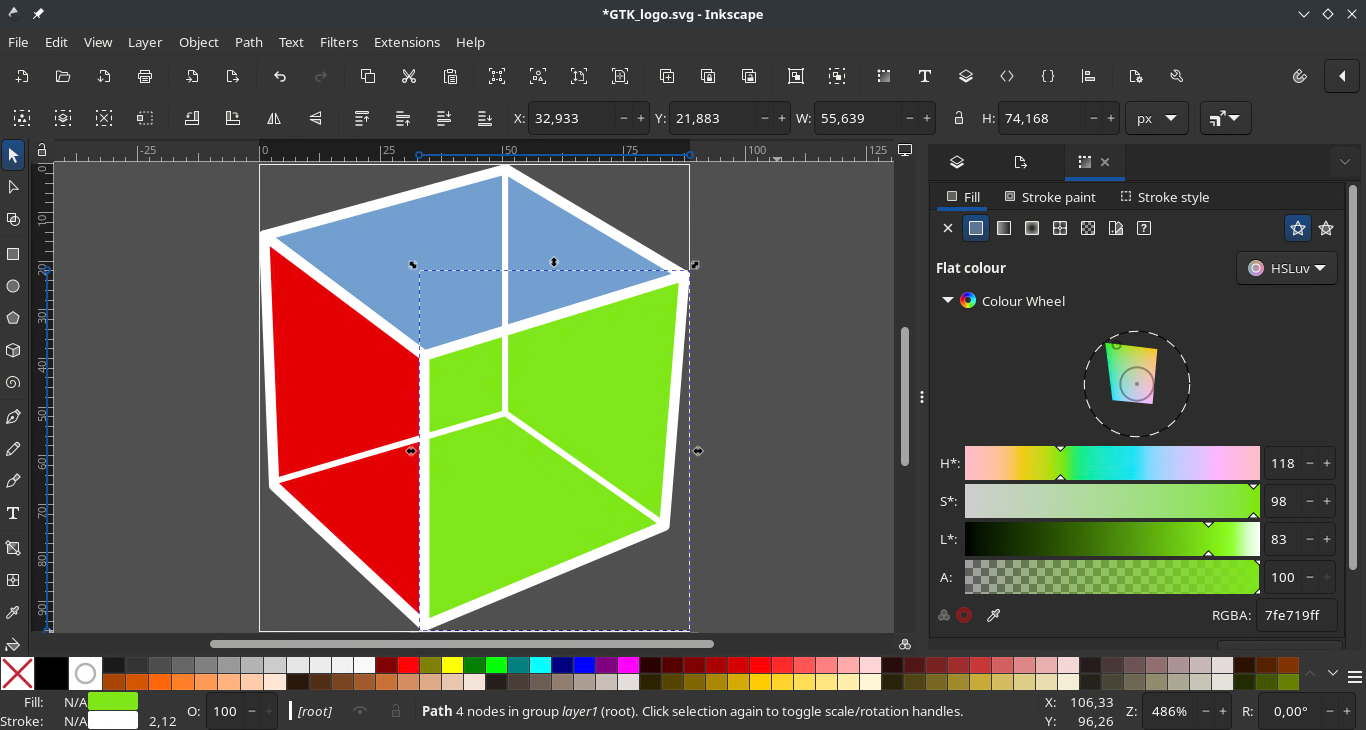
Inkscape is a professional-grade vector graphics editor, comparable to Adobe Illustrator, that also happens to be able to import PDF files. Each page is imported separately as a collection of vector objects, paths, and text elements, which you can then manipulate with full precision.
It is not well-suited for text-heavy documents, as font rendering and layout can shift significantly during import. Multi-page editing is also cumbersome since pages must be handled one at a time. The learning curve is steep, but the tool is very capable for the right use cases.
Key features
- Edit vector elements from PDFs
- Full control over shapes, colors, and objects
- Export to multiple formats
Supported formats: PDF, SVG, EPS, AI, PNG, JPEG
Pros: Free and open source, powerful for graphics
Cons: Not suitable for text-heavy PDFs, multi-page editing is cumbersome, steep learning curve
Best use cases: Editing diagrams, infographics, and graphical PDFs.
8. PDFsam Basic
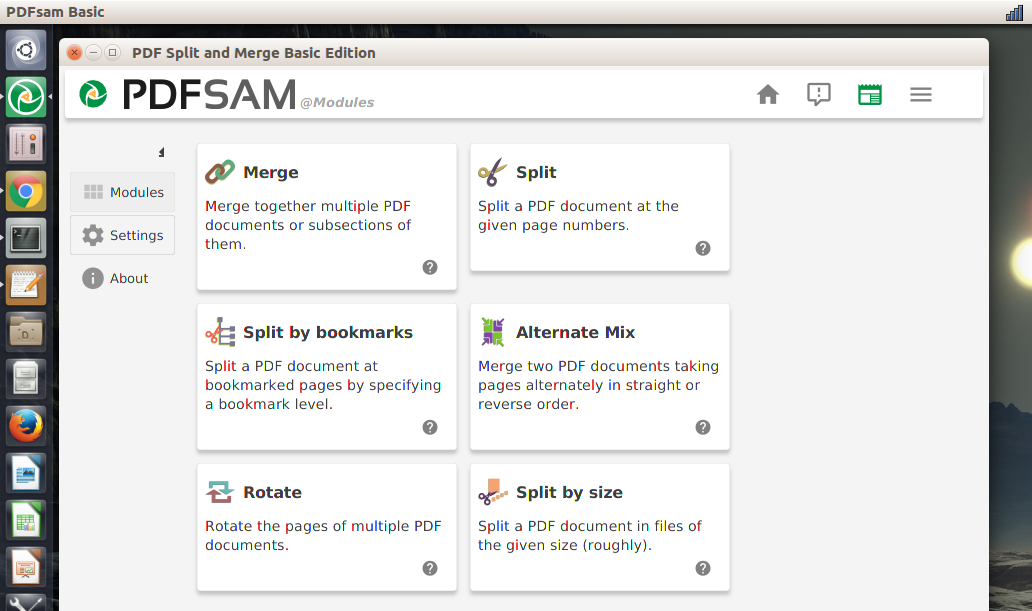
PDFsam (PDF Split and Merge) Basic has been a reliable open-source utility for Linux users for well over a decade. It focuses exclusively on file-level operations: splitting a PDF into individual pages or ranges, merging multiple files into one, extracting specific sections, rotating pages, and creating booklets by rearranging page order.
The interface is straightforward, if somewhat dated, and the tool handles large files without issues.
Key features
- Merge, split, extract, and rotate pages
- Combine alternating pages from multiple PDFs
- Booklet creation
Supported formats: PDF
Pros: Free and open source, reliable, cross-platform
Cons: No editing or annotation features, interface is dated
Best use cases: Managing and restructuring PDF documents.
9. Scribus
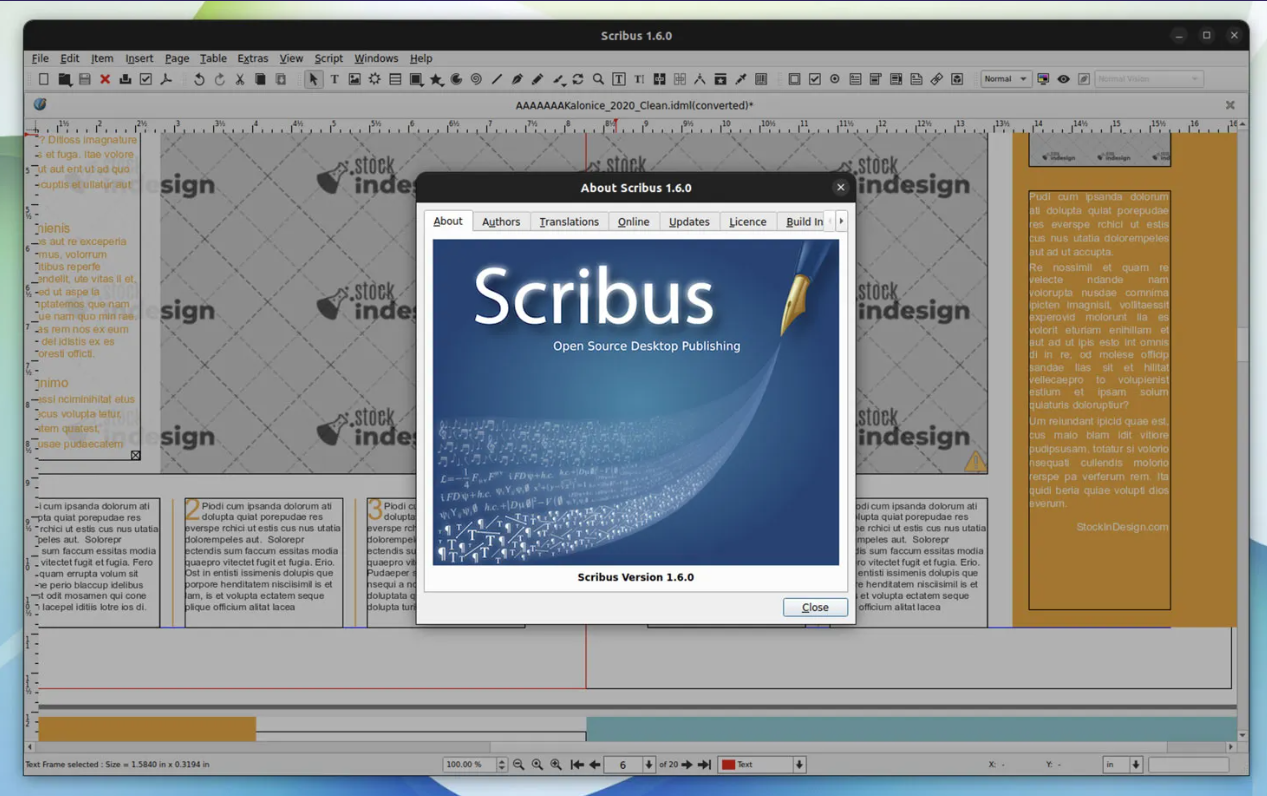
Scribus is a desktop publishing application aimed at producing professional print-ready documents — think brochures, magazines, books, and marketing materials. It is not designed to edit existing PDFs; rather, it is a creation tool for building complex layouts from scratch with precise typographic and color control.
It supports CMYK color profiles, PDF/X output for commercial printing, master pages, and advanced text flow across frames. If you need to redesign a document or create a new publication that will be exported to PDF, Scribus is the most capable free tool available on Linux for that purpose. For editing an existing PDF, however, it is not the right choice.
Key features
- Advanced page layout and typography
- CMYK and PDF/X support
- Professional pre-press tools
Supported formats: SLA, PDF, PDF/X, EPS, SVG
Pros: Free and open source, professional output quality
Cons: Not suitable for editing PDFs, steep learning curve
Best use cases: Designing brochures, books, and print materials.
10. Stirling PDF
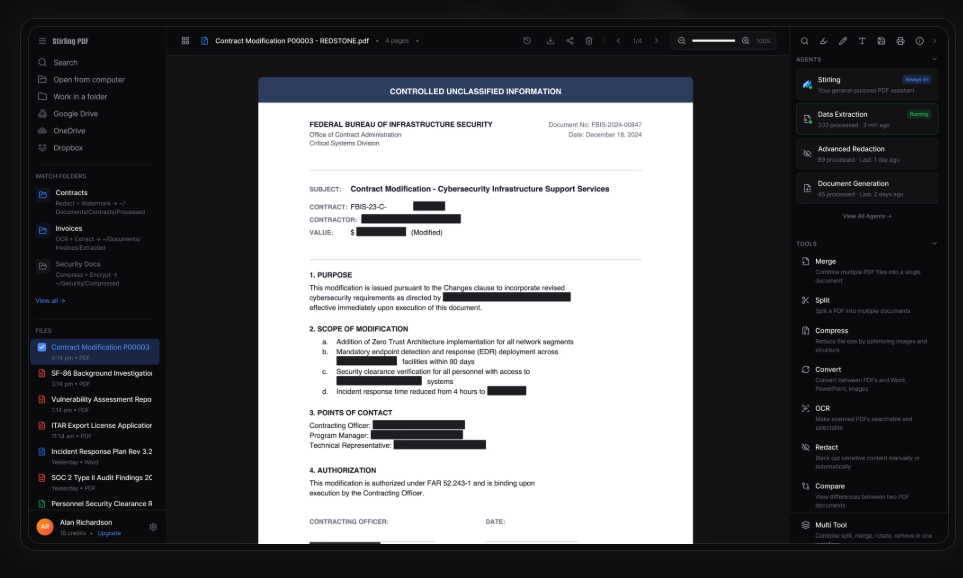
Stirling PDF is a self-hosted web application that bundles over 60 PDF processing tools into a single browser-based interface. Rather than being a traditional desktop app, it runs as a local server — typically via Docker — and is accessed through your browser, making it platform-agnostic within your local network.
Its toolset covers virtually every PDF operation: merging, splitting, compressing, converting to and from common formats, adding watermarks, encrypting, applying OCR, and more. Because everything runs locally, no files are sent to external servers, making it an interesting option for users handling sensitive documents.
Key features
- 60+ tools for PDF processing
- Conversion features depending on enabled modules
- OCR, compression, watermarking, encryption
- Docker deployment and API support
Supported formats: PDF, DOCX, XLSX, PPTX, HTML, JPEG, PNG, TIFF
Pros: Free and open source, very feature-rich, fully private
Cons: Requires self-hosting, not a traditional desktop app
Best use cases: Advanced users who need local, privacy-focused PDF processing.
11. Qoppa PDF Studio
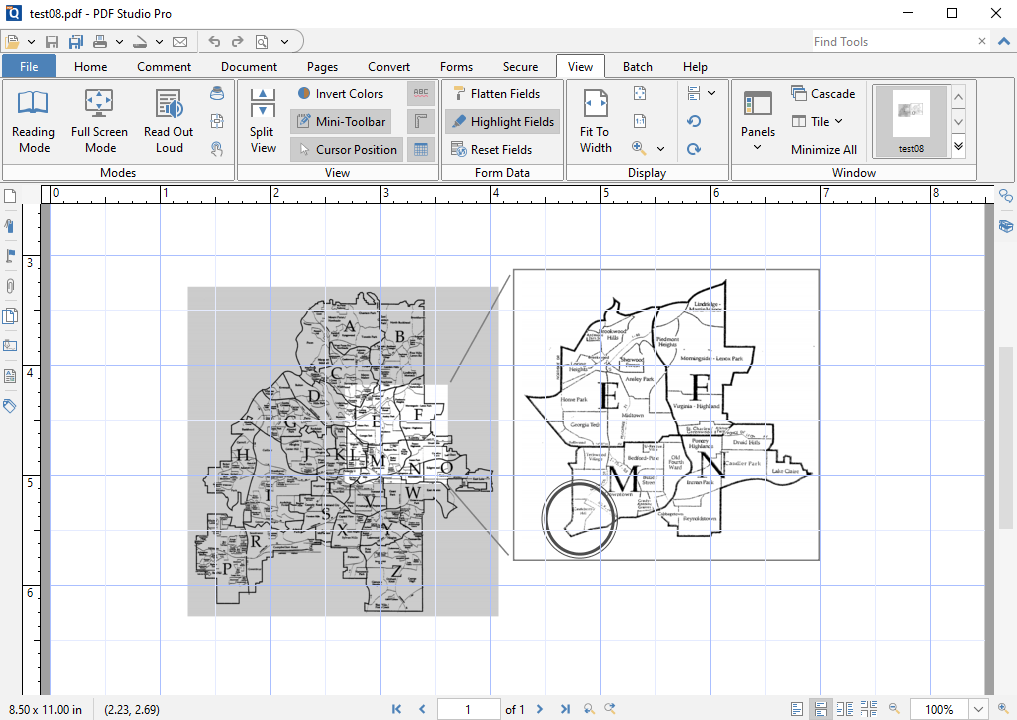
Qoppa PDF Studio is a commercial PDF editor with a native Linux version. The Standard version covers annotation, form filling, digital signatures, and basic page management. The Pro version adds content editing, OCR, batch processing, and advanced PDF/A and PDF/X compliance tools.
Qoppa also offers a command-line tool and server edition for enterprise workflows. Licenses are priced per seat with perpetual or subscription options available.
Key features
- Annotation and markup tools
- Form creation and digital signatures
- OCR and content editing (Pro version)
- Batch processing
Supported formats: PDF, PDF/A, PDF/X, TIFF, JPEG, PNG
Pros: Full-featured, polished interface, professional support
Cons: Paid software, advanced features require Pro version
Best use cases: Businesses and professionals needing a reliable commercial PDF solution.
Comparison table
| Tool | Content Editing | Annotation | Forms | OCR | Merge/Split | Price | Open Source |
| ONLYOFFICE | Yes (full) | Yes | Yes | AI-based | Yes | Free | Yes |
| LibreOffice Draw | Yes (basic) | Limited | No | No | No | Free | Yes |
| Okular | No | Yes (full) | No | No | No | Free | Yes |
| Master PDF Editor | Yes | Yes | Yes | Yes | Yes | Free / Paid | No |
| PDF Arranger | No | No | No | No | Yes | Free | Yes |
| Xournal++ | No | Yes | No | No | No | Free | Yes |
| Inkscape | Yes (vector) | No | No | No | No | Free | Yes |
| PDFsam Basic | No | No | No | No | Yes | Free | Yes |
| Scribus | Yes (layout) | No | No | No | No | Free | Yes |
| Stirling PDF | Tool-based | Yes | Yes | Yes | Yes | Free | Yes |
| Qoppa PDF Studio | Yes (Pro) | Yes | Yes | Yes (Pro) | Yes | Paid | No |
Which Linux PDF editor should you choose?
If you’re looking for a single tool that covers most PDF needs without limitations, ONLYOFFICE Desktop Editors is the most complete free option available on Linux, combining content editing, forms, signatures, and collaboration features in one place.
That said, other tools can be a better fit depending on your specific task. Okular is a solid choice for fast and reliable annotation. PDF Arranger and PDFsam are ideal when your focus is purely on organizing pages. Scribus remains the go-to solution for creating print-ready documents from scratch, while Stirling PDF stands out for privacy-focused workflows and batch processing. For businesses that require a commercial-grade solution with dedicated support, Qoppa PDF Studio is a strong option.
Linux users now have access to a mature ecosystem of PDF tools, making it possible to handle everything from quick edits to complex document workflows without relying on proprietary platforms.
Get ONLYOFFICE Desktop Editors and edit your PDFs on Linux
Take full control of your PDFs with real content editing, built-in forms, and advanced annotation tools—all in one application. No need for extra software: everything you need is already there, from editing to signing and collaboration.
Create your free ONLYOFFICE account
View, edit and collaborate on docs, sheets, slides, forms, and PDF files online.