Extending ONLYOFFICE with custom plugins: build the tool you keep reaching for
If you spend enough time working with documents, you start noticing patterns that are easy to overlook at first. It’s rarely the complex tasks that slow you down, but rather the small, repetitive ones, like rewriting similar sections, fixing the same formatting issues, or pulling data from familiar sources. None of this is particularly difficult, yet it gradually eats into your time and focus.
Most people accept this as part of the process. With ONLYOFFICE, it doesn’t have to stay that way.

The first plugin usually comes from irritation
Developers rarely set out with the intention of extending an editor. More often, the process begins with a specific annoyance that keeps coming up. It might be something as simple as inserting a predefined structure, cleaning up text, or bringing in a few fields from another system into a document.
Once you automate that single task, even in a rough form, the experience changes in a noticeable way. The editor starts to feel less rigid and more responsive to how you actually work, which tends to shift your perspective from using a tool to shaping it.
What building a plugin actually involves
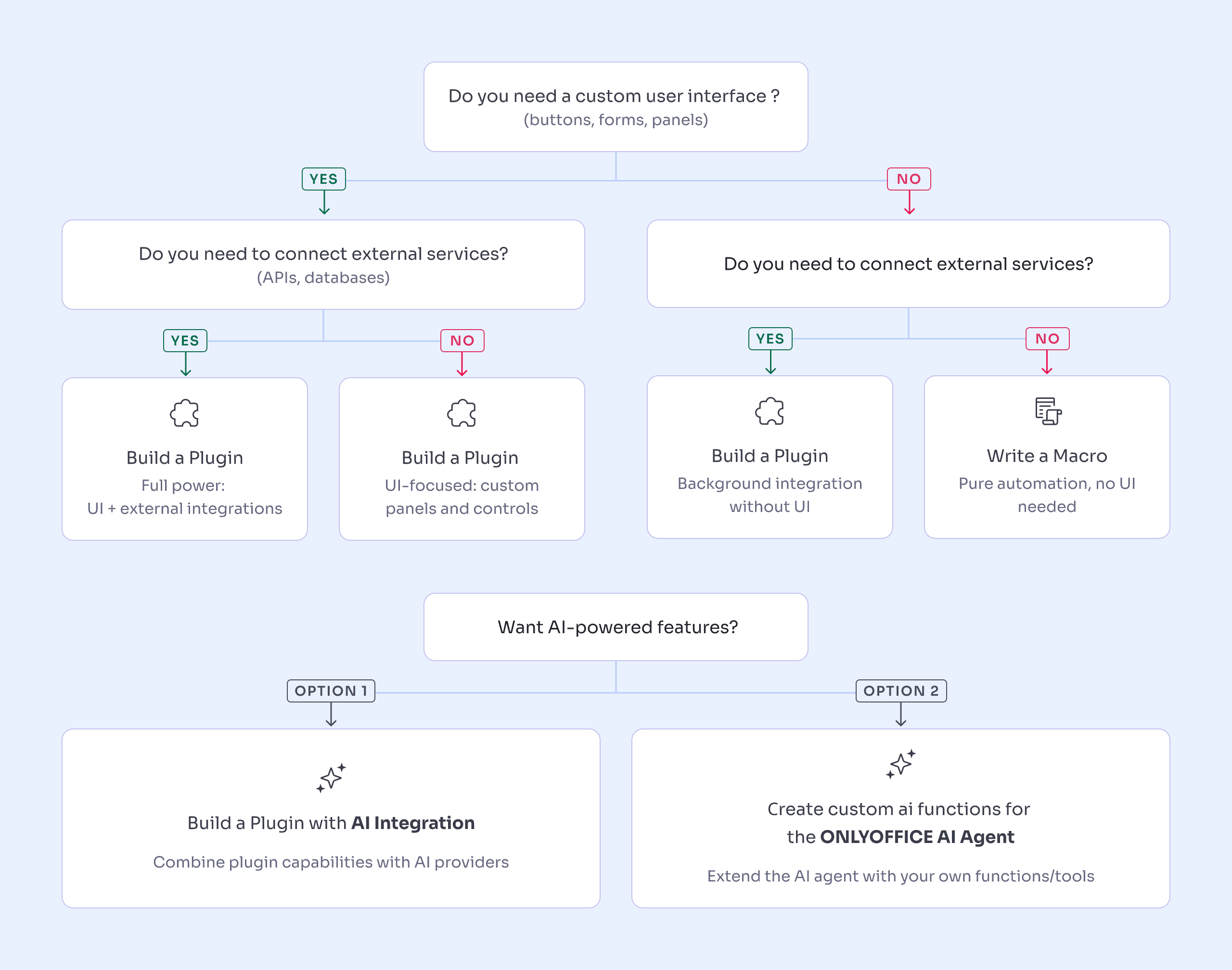
There’s a common assumption that building plugins requires a complicated setup or learning something entirely new, but in practice, the structure is fairly approachable. An ONLYOFFICE plugin is essentially a small web application composed of a configuration file that defines how it integrates, a simple HTML interface, and JavaScript that handles the logic and communication with the editor. If you want to see how this structure looks in practice, the official getting started guide walks you through step by step.
Even without going into technical details, the idea behind it is straightforward. A plugin takes something from the document, does something useful with it, and returns the result directly where it’s needed. That could mean transforming text, inserting structured content, or pulling in external data.
If you’ve worked with basic web technologies before, the environment feels familiar enough to start experimenting without a steep learning curve.
Where things start to expand
After building something small, it becomes easier to see how often documents are part of a larger workflow rather than isolated tasks. Data flows into them, decisions are made within them, and outputs are shared from them. Plugins allow you to connect these pieces in a way that reduces manual work.
Instead of copying information from a CRM or database, you can fetch it directly into the document. Instead of assembling reports step by step, you can generate a structured draft and refine it. Even repetitive checks can be automated so that inconsistencies are caught early rather than after the fact.
AI fits naturally into this layer, especially when it comes to processing text. A plugin can take selected content, send it to an external service, and return something more useful, whether that’s a shorter version, a clearer structure, or a different tone. For example, a simple plugin can let you highlight a paragraph, click a button, and instantly get a clean summary inserted right below it, which is the kind of small improvement that quickly becomes part of everyday work. AI tools make it easier to experiment with these ideas, since they can help generate boilerplate, suggest implementations, or assist with debugging as you iterate.
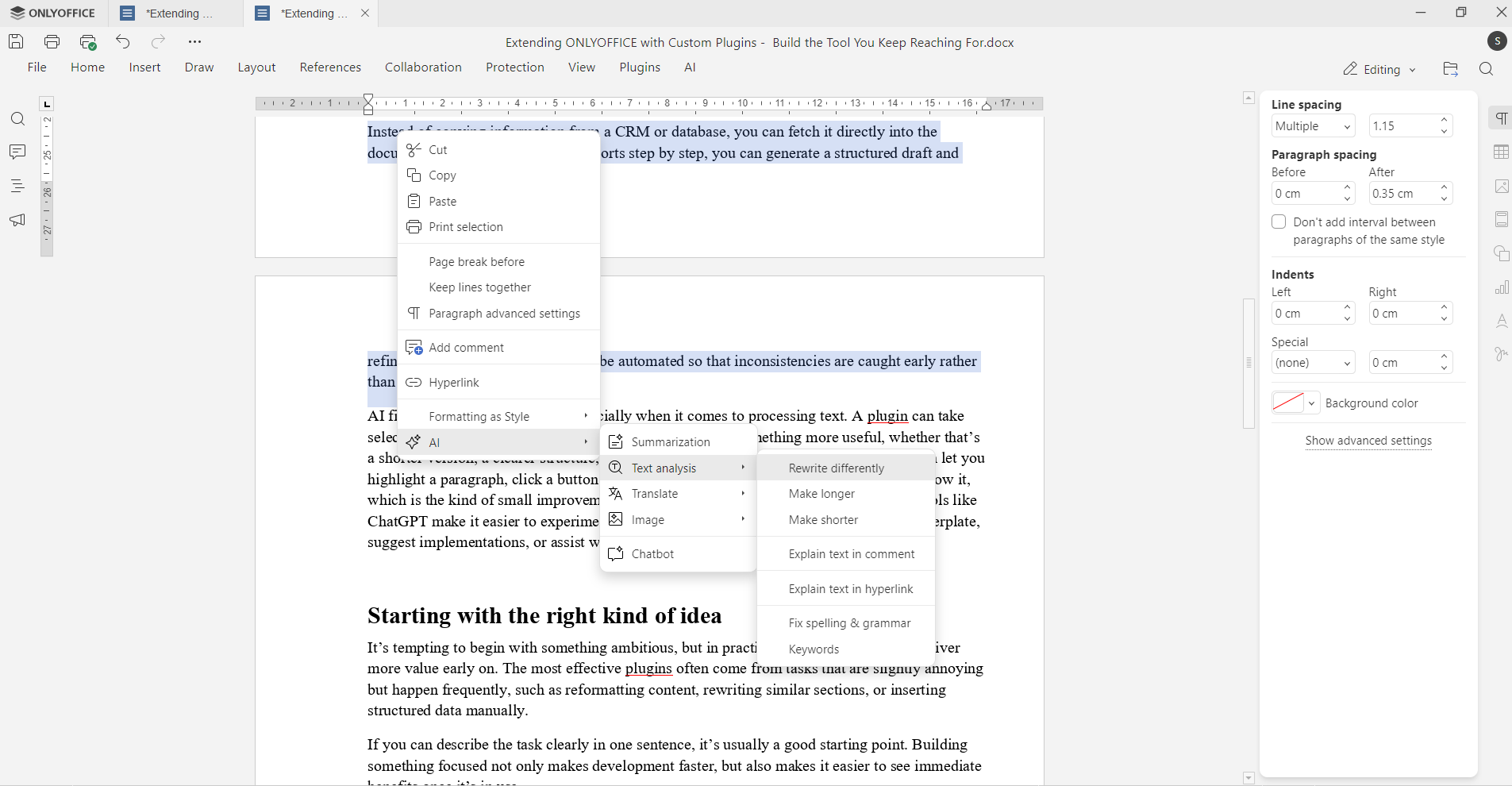
And even more: an entire plugin can be developed completely by AI, with no manual coding required. Check out this article for a detailed guide.
Starting with the right kind of idea
It’s tempting to begin with something ambitious, but in practice, smaller ideas tend to deliver more value early on. The most effective plugins often come from tasks that are slightly annoying but happen frequently, such as reformatting content, rewriting similar sections, or inserting structured data manually.
If you can describe the task clearly in one sentence, it’s usually a good starting point. Building something focused not only makes development faster, but also makes it easier to see immediate benefits once it’s in use.
Explore our plugin code samples for inspiration

Seamless integration: plugins that fit your workflow
What separates a plugin that gets used from one that doesn’t is rarely complexity. More often, it comes down to how naturally it fits into the workflow. Tools that remove friction without adding extra steps tend to stick, especially when they operate quietly in the background or through simple interactions.
Because plugins live inside the editor, their impact is immediate. There’s no need to switch context or rely on external tools, which makes even small improvements feel significant. On the other hand, anything that feels heavy or interrupts the flow is easy to ignore, regardless of how powerful it might be.
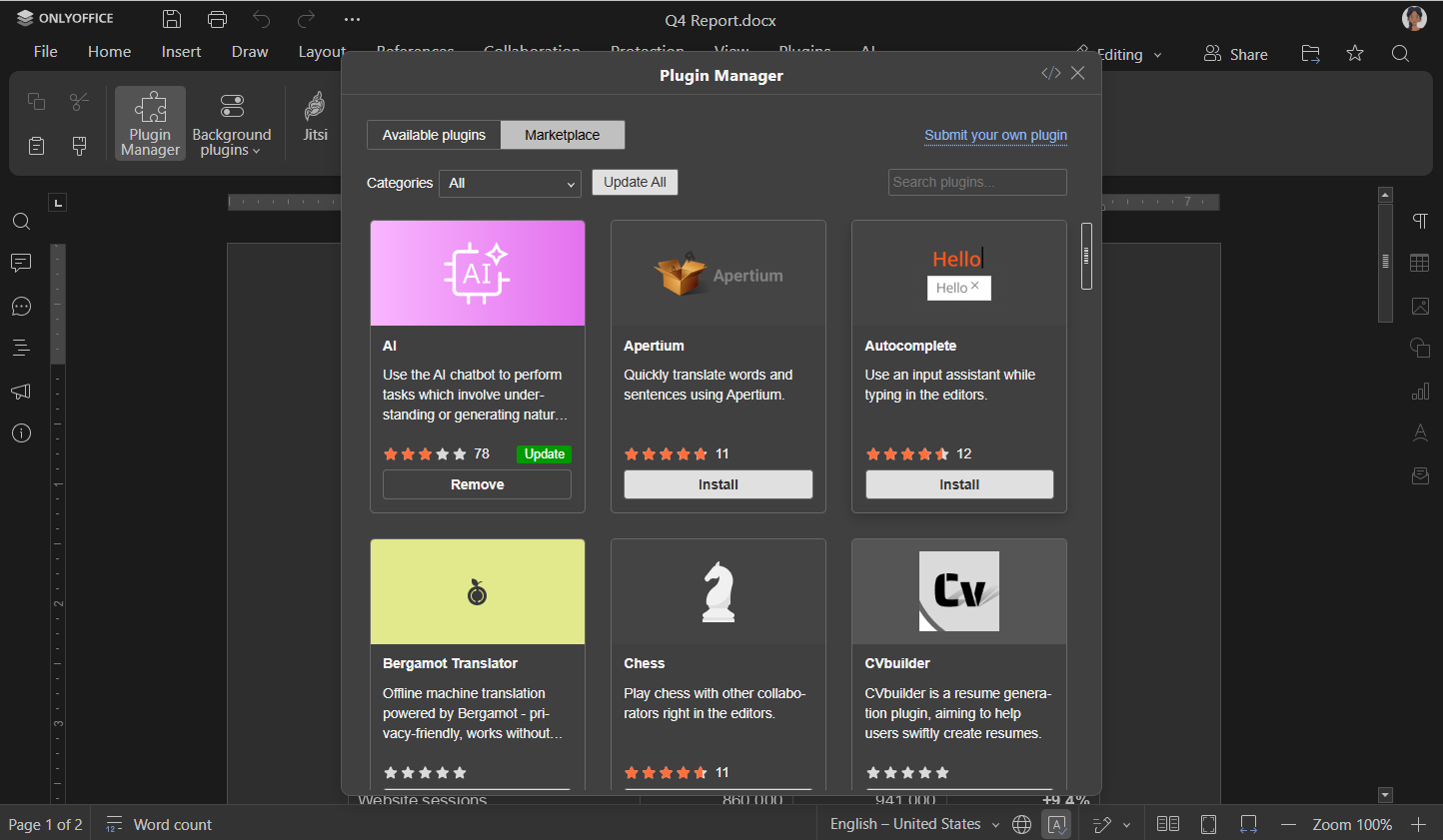
Thanks to the built-in Plugin Manager, finding, installing, and managing new plugins takes only a few clicks. You do not need complex setups or technical skills to get started. This smooth design means you can easily bring powerful new features into your daily tasks without ever leaving a document.
Why this is still worth exploring
Compared to more saturated ecosystems, the space around ONLYOFFICE plugins still leaves room for practical ideas. There aren’t countless overlapping solutions for every niche, which means that tools tailored to specific workflows, such as legal documents, reporting, or internal operations, can still stand out.
You don’t need to build something broad or complex. Solving a real problem reliably is often enough to make a plugin useful.
Final thought
Working with custom plugins in ONLYOFFICE isn’t about adding features for the sake of it, but about reducing the gap between how work should happen and how it actually does. Once you automate even a small part of that process, it becomes easier to see where else the same approach can be applied.
If you already have something in mind that feels repetitive or slightly frustrating, that’s probably a good place to start.
Create your free ONLYOFFICE account
View, edit and collaborate on docs, sheets, slides, forms, and PDF files online.