Connect ONLYOFFICE Apps to Claude and enable AI-driven room and file management workflows without leaving the chat
Good news for those who rely on Claude in their work and want to bring remote AI automation to their ONLYOFFICE Apps environment! The newly released integration app allows you to connect ONLYOFFICE Apps to your AI assistant and manage files, rooms and people without leaving the chat. Read this blog post for further details.

What is the ONLYOFFICE Apps connector for Claude?
ONLYOFFICE Apps is the new name for what used to be ONLYOFFICE DocSpace before the version 10.0 release. Instead of everything living inside DocSpace, there are now separate modular apps that you can mix and match — AI Agents, Forms, Rooms and Files. Using these apps, you enable new features and capabilities inside your ONLYOFFICE Docs instance, i.e. AI-based workspace automation, form-filling and data collection, room-based collaboration and centralized file storage, respectively.
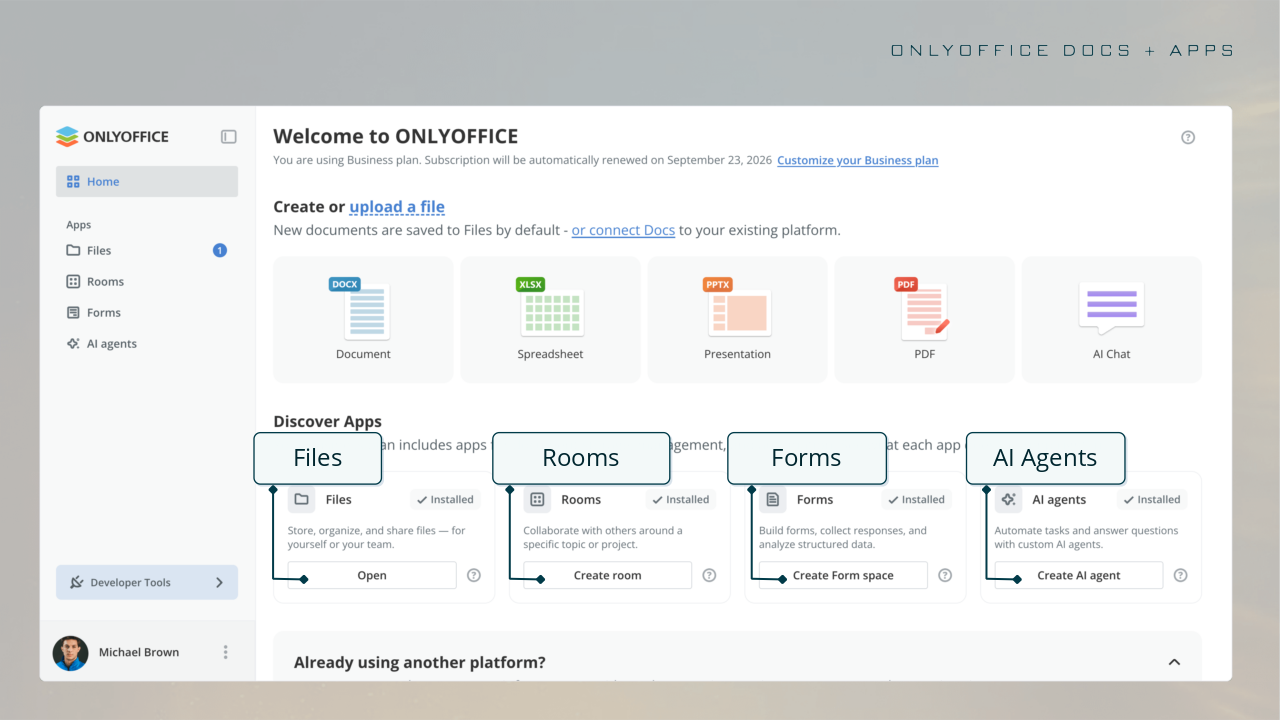
The new integration app allows you to connect ONLYOFFICE Apps to your Claude account and manage rooms, files and people in your ONLYOFFICE environment remotely. What this means is that you don’t have to log into the ONLYOFFICE platform to perform the required actions — you simply ask Claude to do that for you, and the AI assistant will get the work done.
The Claude connector is based on the ONLYOFFICE Apps MCP Server and uses Model Context Protocol (MCP), an open standard protocol designed to connect large language models (LLMs) to external systems. The ONLYOFFICE MCP server enables AI agents, assistants and chatbots to manage rooms, work with files, handle user permissions and automate document workflows. It’s compatible not only with Claude but also supports other solutions, such as Mistral Vibe, Cursor, VS Code, Devin Desktop and more.
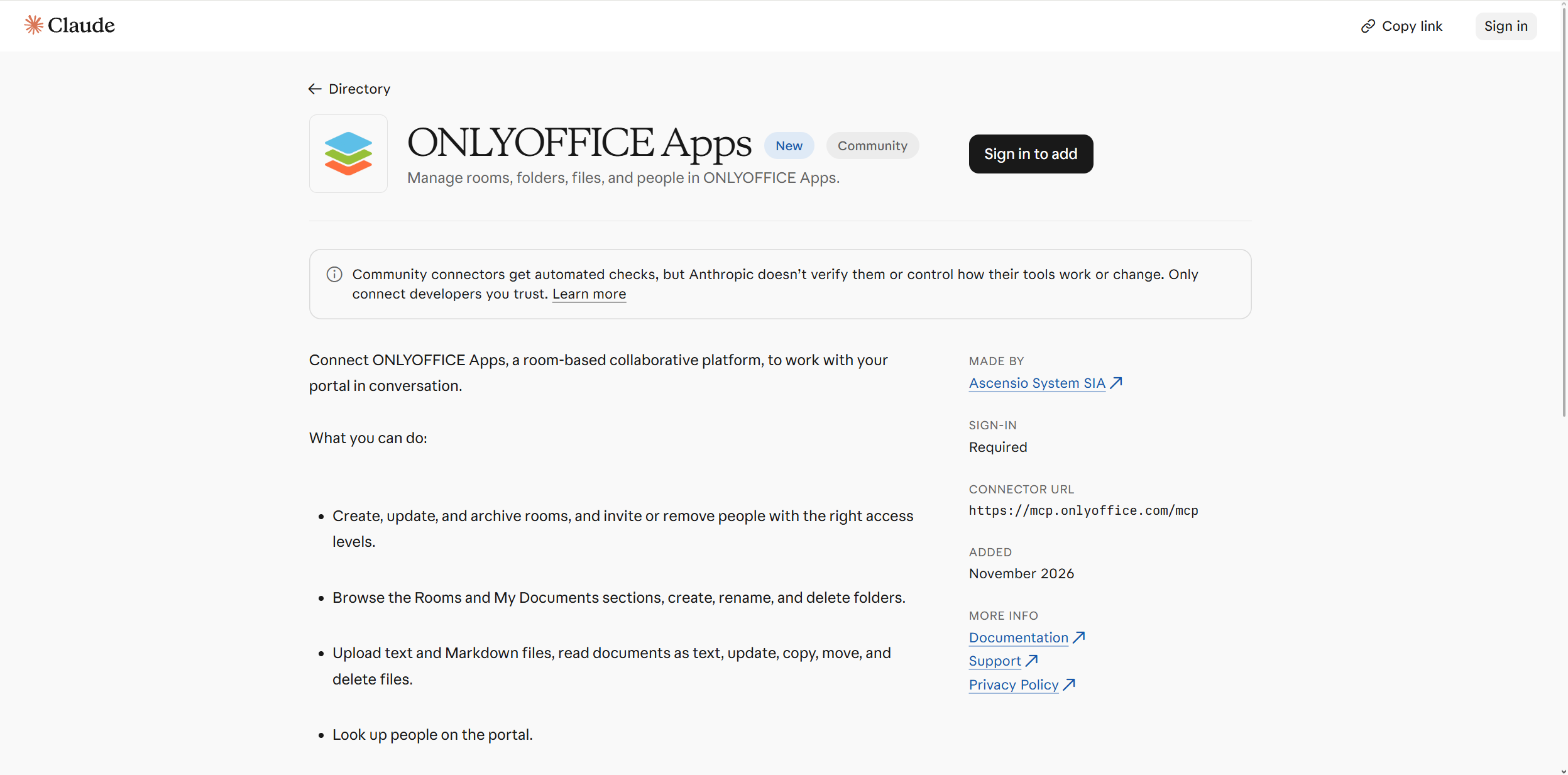
How it works
In practice, the ONLYOFFICE Apps connector simplifies interaction with your ONLYOFFICE environment, allowing you to manage it directly in the Claude chat. You ask Claude in plain language to do something in your workspace, and Claude calls the corresponding tools to perform the required operation.
The available tools for this integration are organized into four groups: files, folders, people and rooms. Here is what Claude can do for you:
- Creating, updating or archiving a room;
- Inviting people with the right access levels to a room or removing them;
- Creating, renaming and deleting folders;
- Searching for a file in the Rooms and Files sections;
- Uploading text and Markdown files to your workspace;
- Copying, moving and deleting files;
- Reading documents as text;
- Searching for people and more.
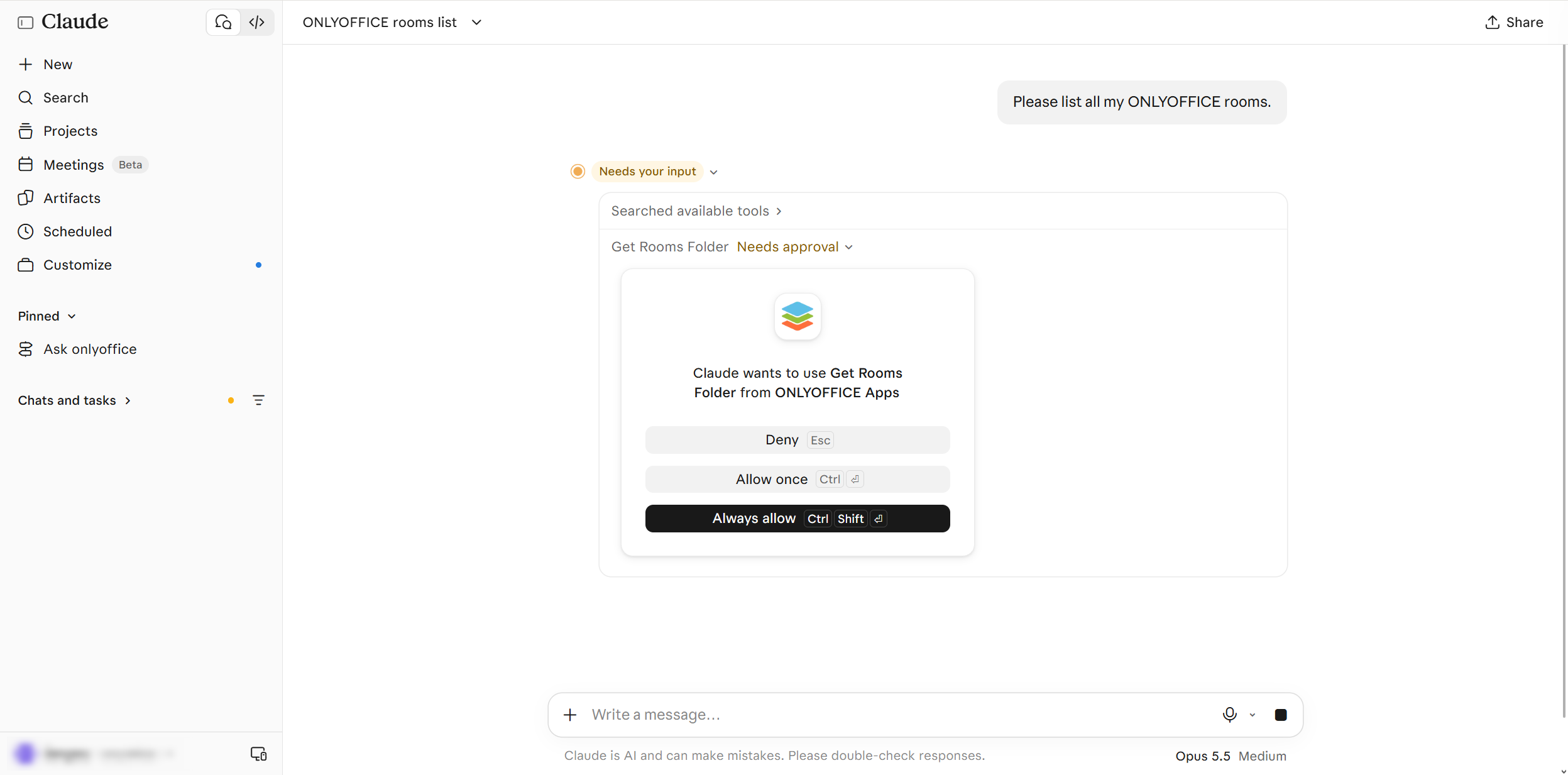
Claude may ask for your approval before taking actions. For example, when you ask it to create a new room, Claude requests permission first.
The biggest advantage of this integration is that everything happens in the Claude chat. You don’t need to log into your ONLYOFFICE platform and navigate through menus and click buttons. What would require several clicks and key presses becomes a single sentence sent to Claude.
ONLYOFFICE Apps and Claude: use cases
The ONLYOFFICE Apps and Claude integration can empower teams to automate their daily tasks without writing code:
- Project management. Create rooms for new projects, invite your teammates, manage membership by access level, track who can access certain rooms and archive rooms when the projects end.
- Bulk operations. Create folders, upload TXT and MD documents, copy or move items in batches, rename or delete folders, and check file or folder details. Requests like “move all Q3 files into the Archive folder” no longer mean dozens of clicks.
- Secure collaboration. Invite or remove users, view security settings and review current access permissions for rooms.
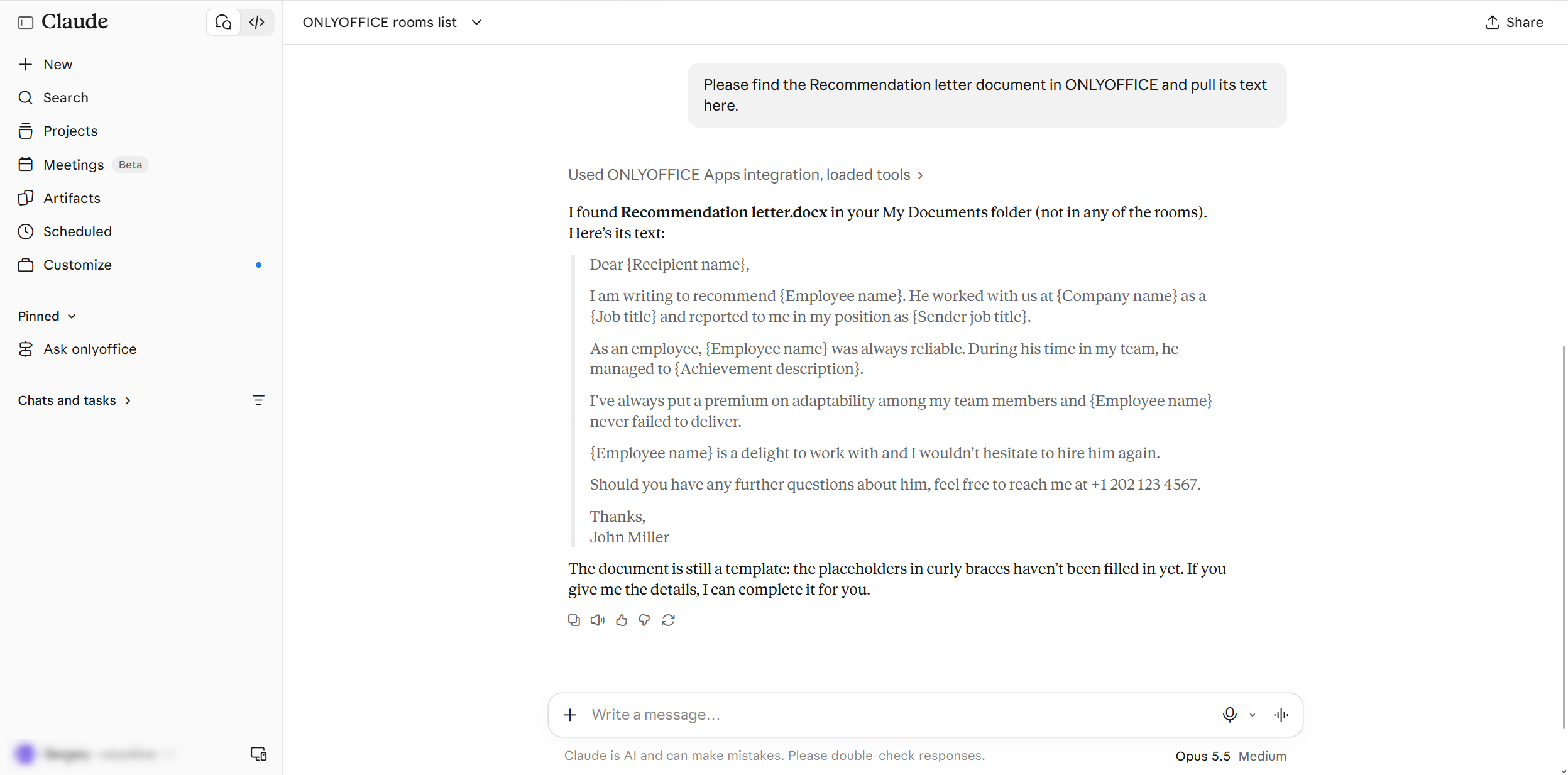
- Content analysis. You can browse your ONLYOFFICE folders and pull file contents into Claude for further summarization or analysis.
How to get started
Connecting ONLYOFFICE Apps to Claude is quite simple. You need to follow these steps:
Step 1. Open the ONLYOFFICE Apps URL in the Claude Directory and click Connect to Claude.
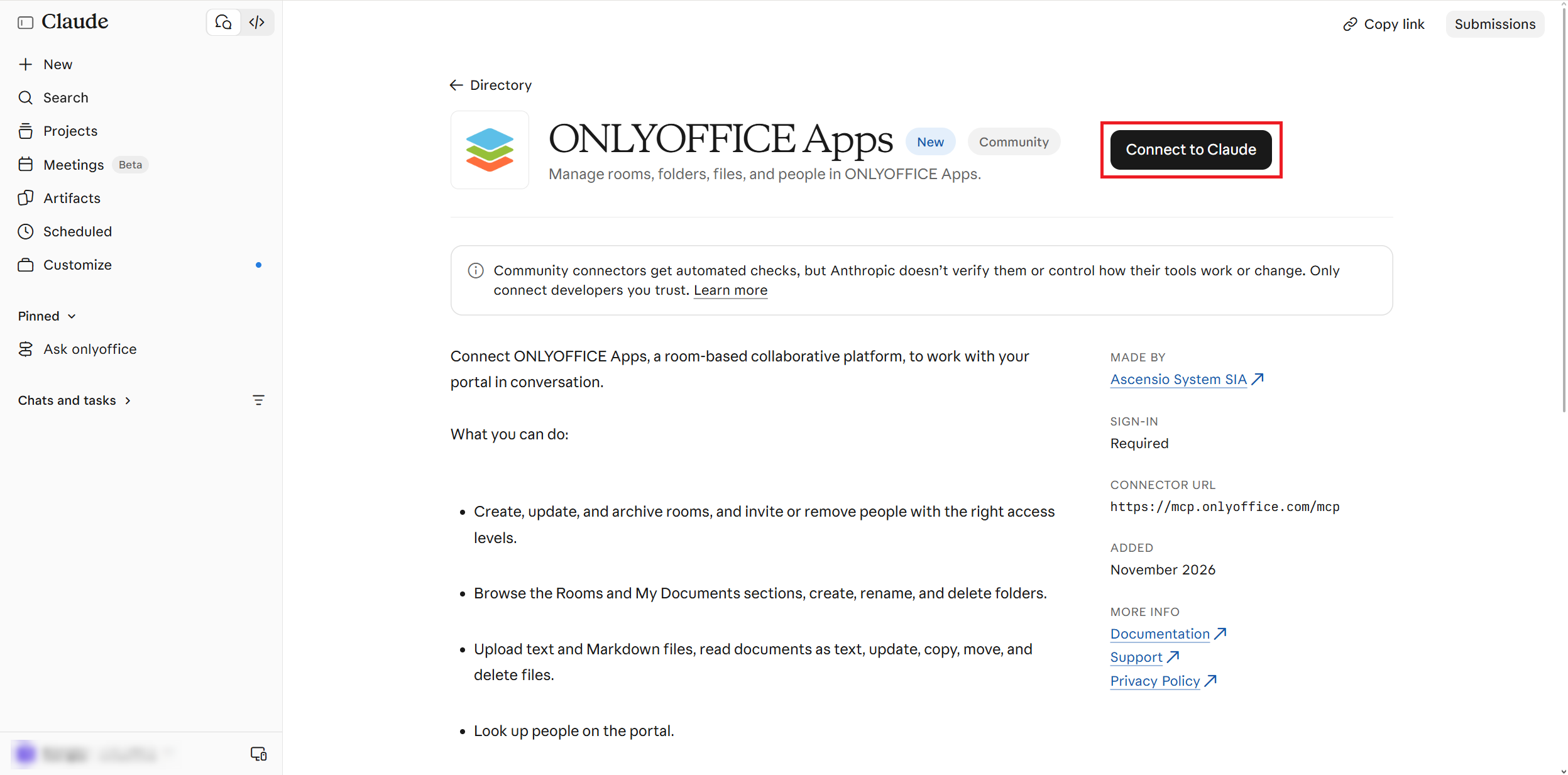
Alternatively, go to Claude, access Settings → Connectors. Find ONLYOFFICE Apps in the directory and click Connect.
Please note that the ability to connect the app may depend on your organisation’s settings in Claude.
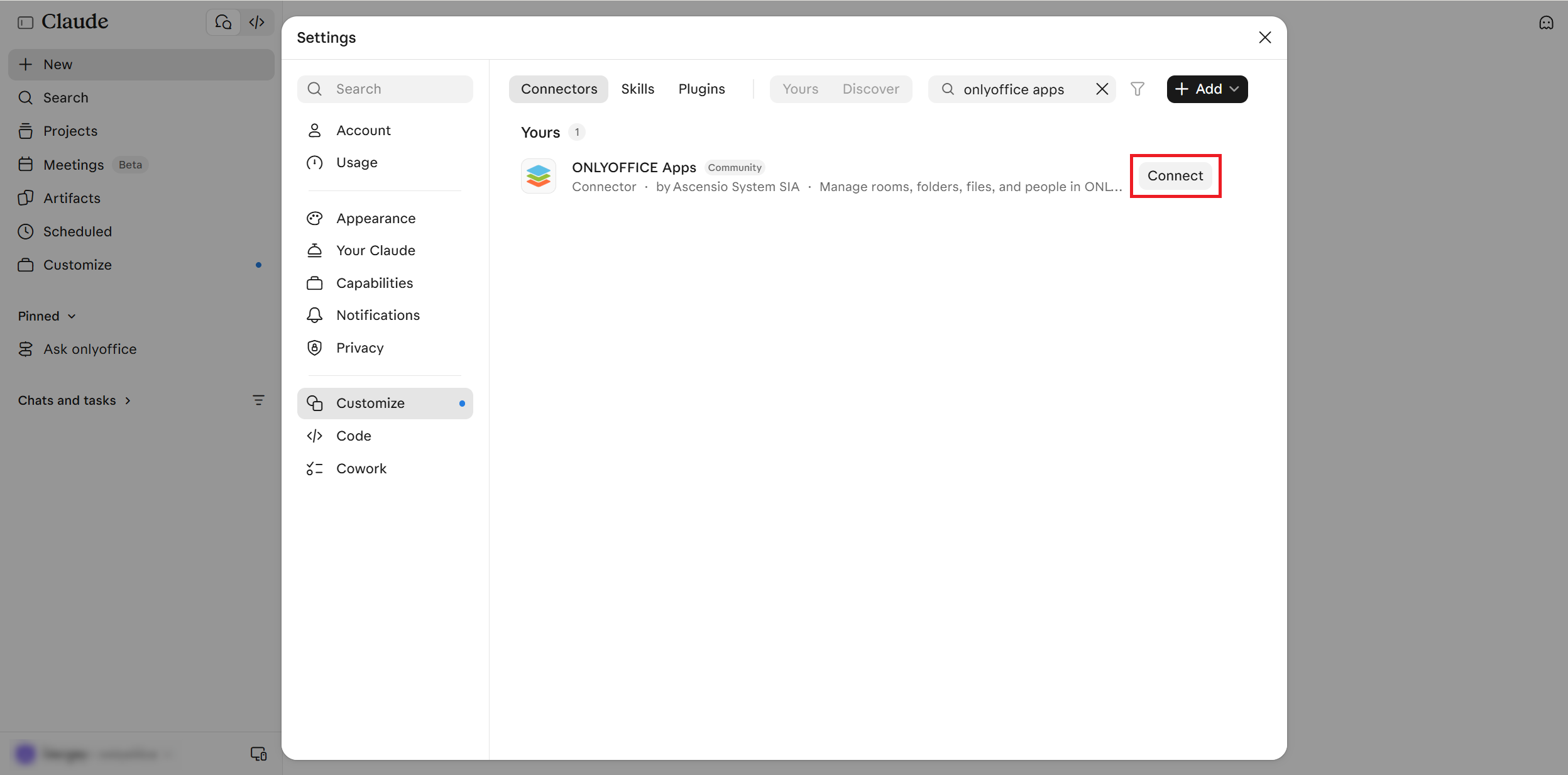
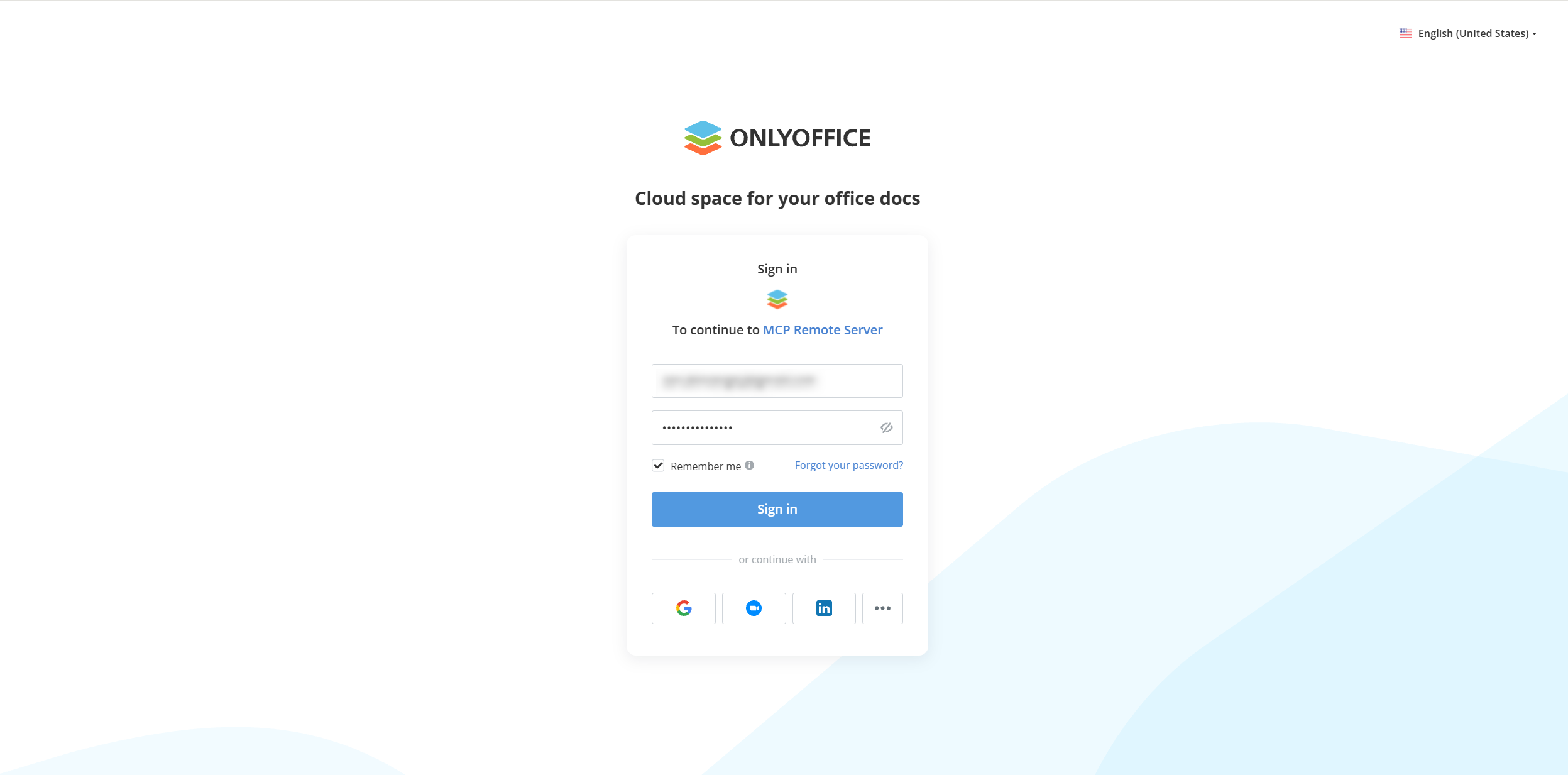
Step 2. Sign in to your ONLYOFFICE account. If you don’t have it, you can create one for free on this page.
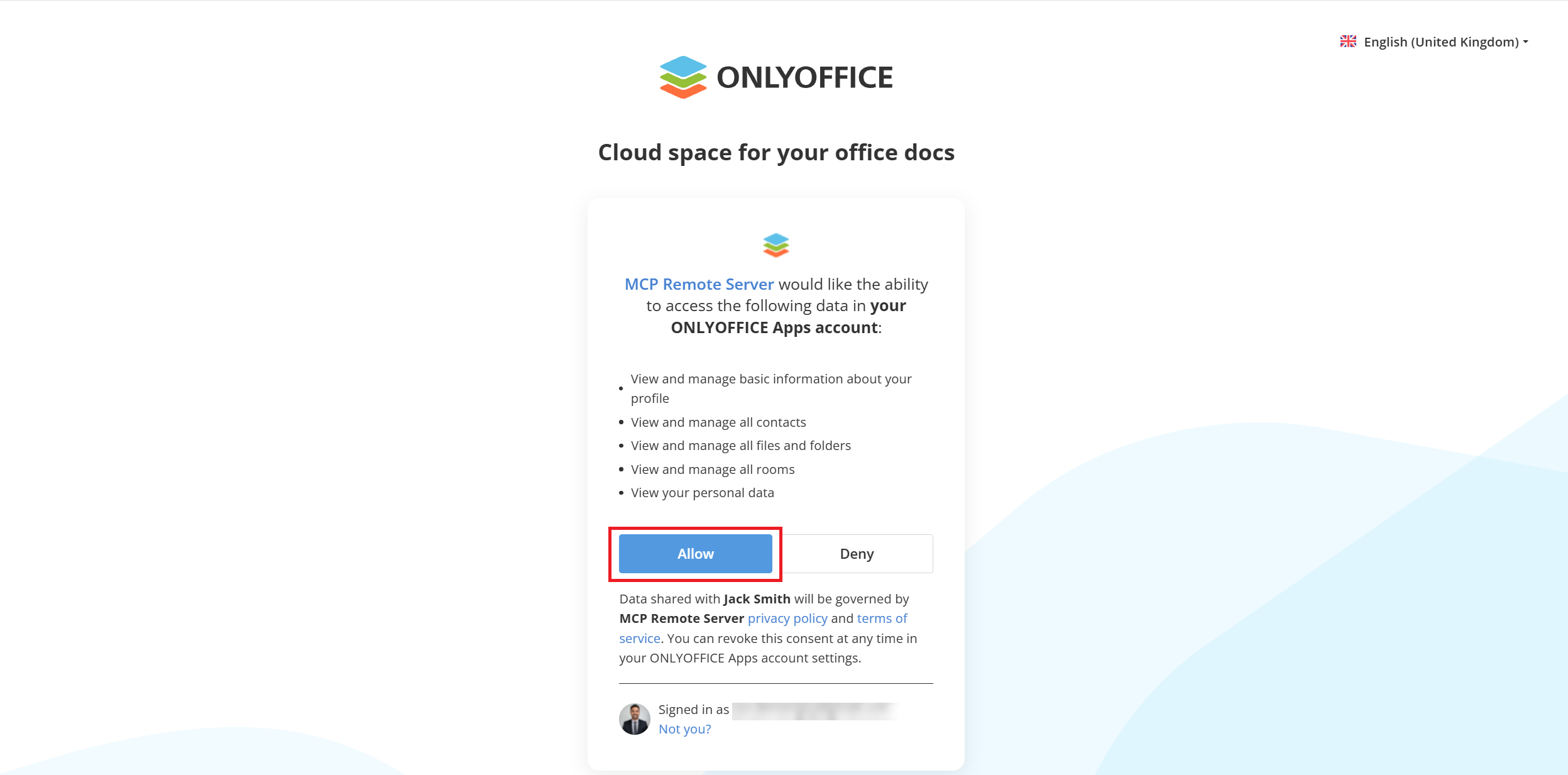
Step 3. During the authorization process, click Allow when you are asked to grant access to your ONLYOFFICE Apps data.
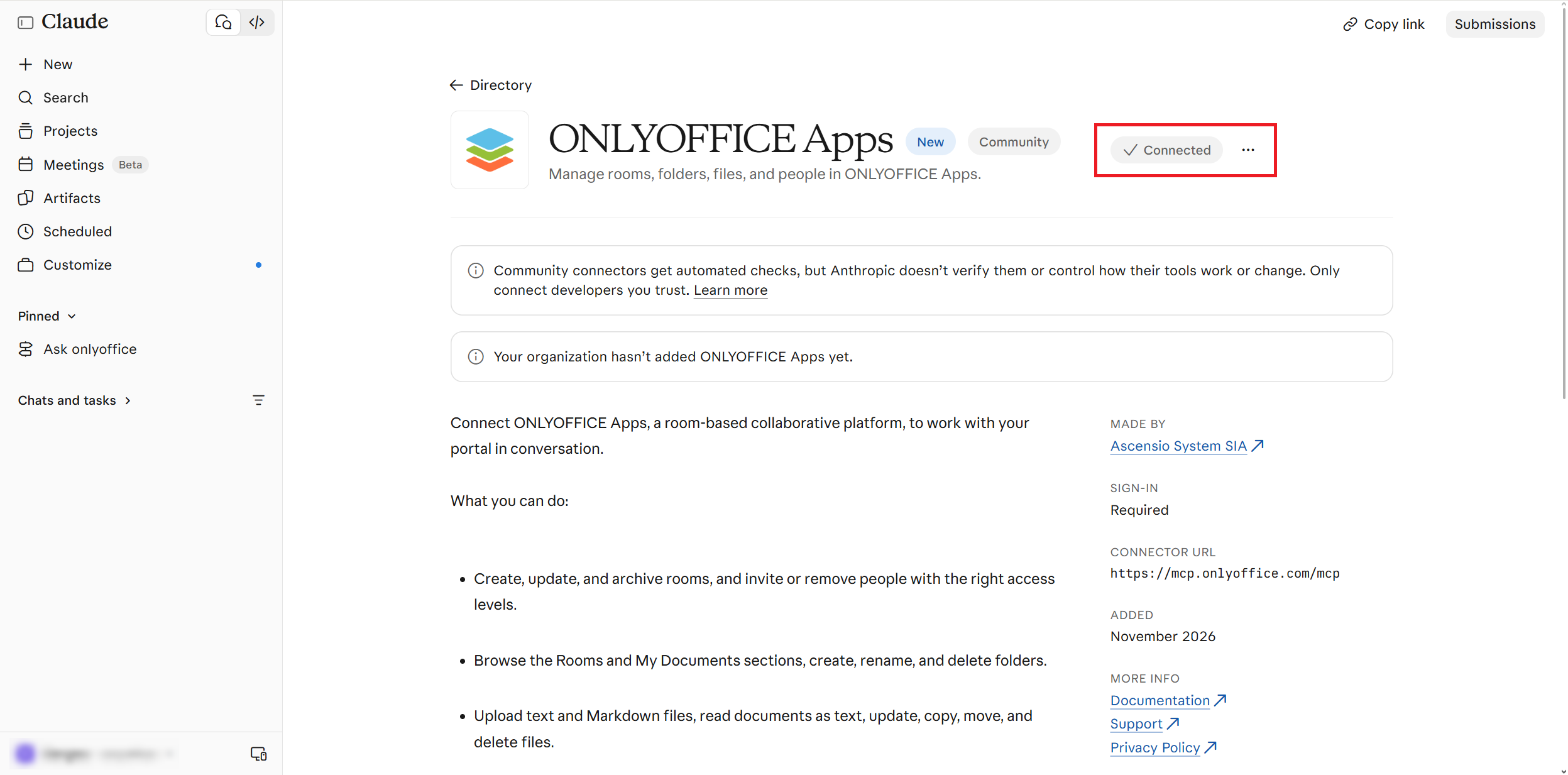
If done correctly, you will be redirected to the ONLYOFFICE Apps page, and you will see a notification about successful integration.
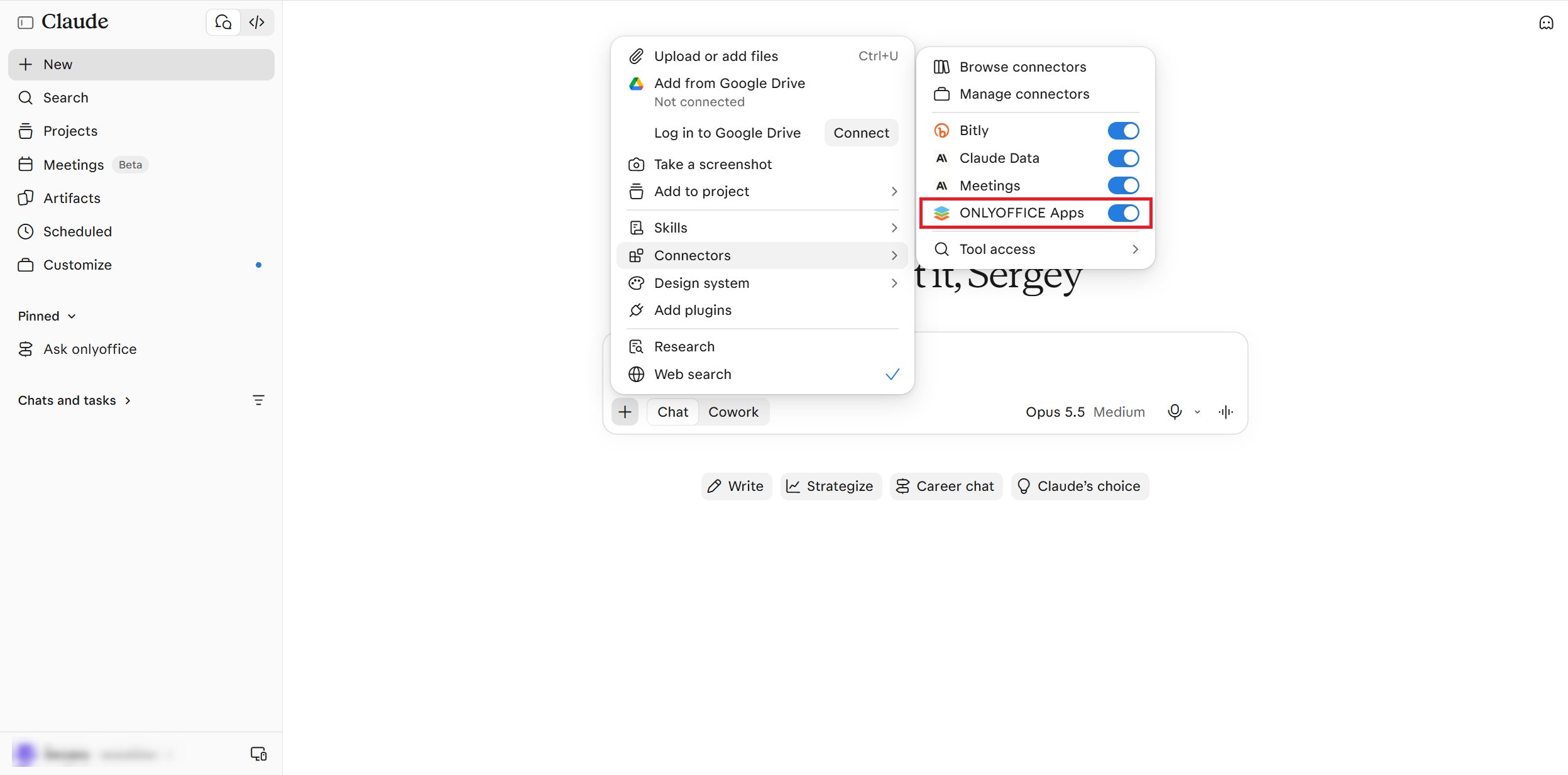
Step 4. Go to the Claude chat and make sure that the ONLYOFFICE Apps connector is turned on from the + → Connectors menu.
That’s it. Now you can start managing your ONLYOFFICE workspace directly from Claude. You can try a simple request, such as “List my rooms”, to check if everything works correctly. When processing your request, Claude might ask you to give it access to the corresponding tools. If you deny the requested access, Claude won’t be able to do what you need.
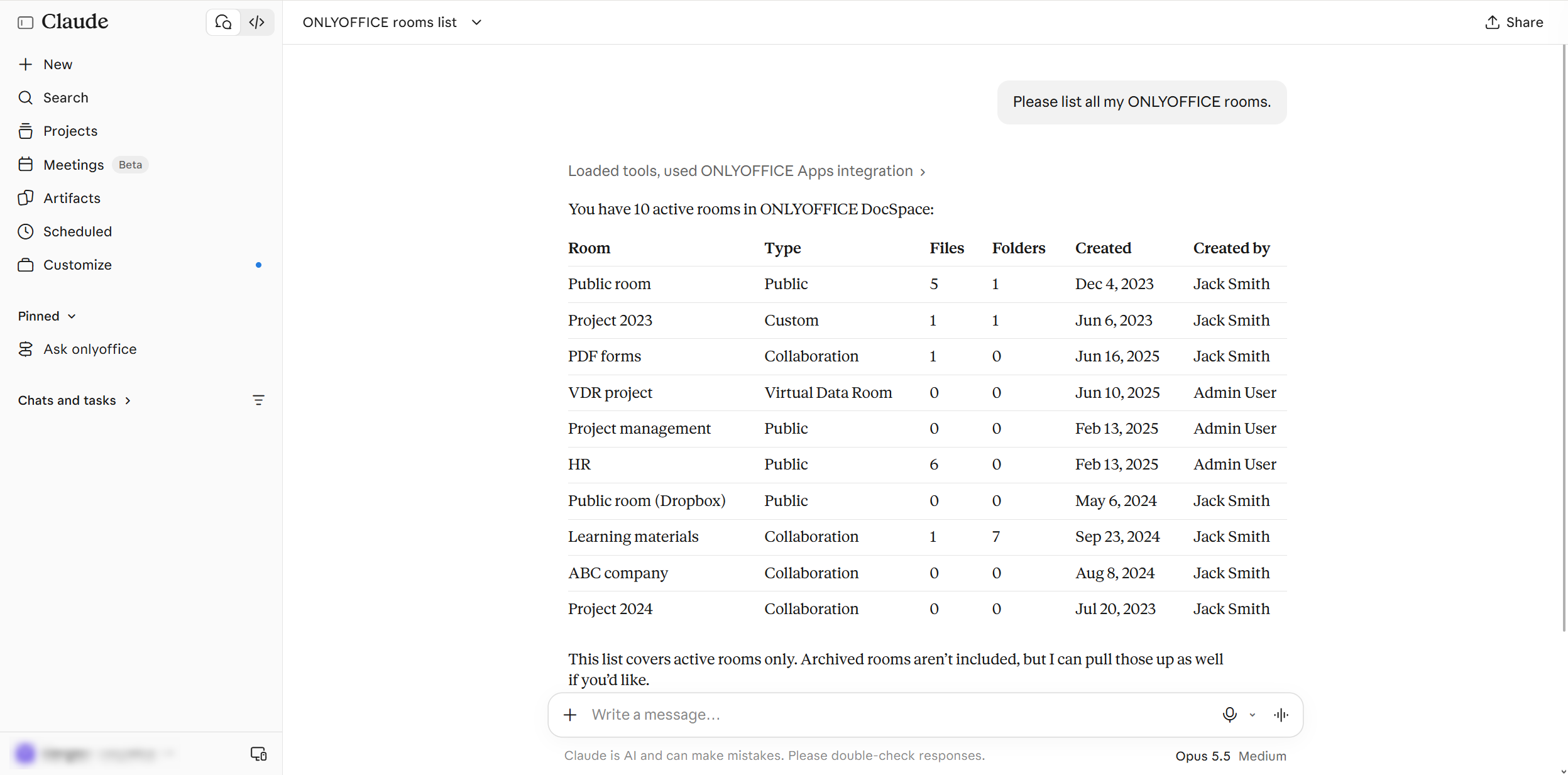
After giving Claude the requested permission, wait till the action is performed. The task has been successfully done — now you can see all of your ONLYOFFICE rooms and their details.
Now you can try more complex requests to make the most of the ONLYOFFICE Apps and Claude integration — create and archive rooms, manage folders, search for files, invite your teammates and much more.
Connect ONLYOFFICE Apps to Claude
Ready to enable AI-automation for your ONLYOFFICE workspace and manage it directly from the Claude chat? Connect ONLYOFFICE Apps from the Claude Directory:
FAQ: ONLYOFFICE Apps for Claude
Is the ONLYOFFICE Apps connector for Claude free?
Yes, the connector is absolutely free, and you can get it from the Claude Directory.
What do I need to get started with the ONLYOFFICE Apps and Claude integration?
To get started with this integration, you need to have an ONLYOFFICE Cloud account. You can create a free one on this page.
What is this integration designed for and what is it capable of?
The integration allows you to connect ONLYOFFICE Apps to your Claude account and manage rooms, files and people in your ONLYOFFICE workspace directly from the AI chat. You simply write a request in the chat, and Claude will do this for you.
With ONLYOFFICE Apps and Claude, you can archive rooms, copy items to a folder, create new folders and rooms, delete files and folders, list current users, move files and more. Instead of clicking buttons and navigating menus in ONLYOFFICE, you just send requests to Claude.
What is the technology behind the ONLYOFFICE Apps connector?
The integration app for Claude is based on ONLYOFFICE Apps MCP Server, a tool that implements the Model Context Protocol (MCP), allowing AI agents to interact securely with ONLYOFFICE.
Are there any limitations in this integration?
Yes, there are some. First, uploading supports only TXT and MD files. Secondly, Claude can read documents as plain text, so formatting, images and embedded objects are not available. Finally, all actions are performed only with the permissions of the signed-in ONLYOFFICE Apps user.
When I send requests to Claude, I see a pop-up window requesting access. Is that OK?
Yes, it’s OK. Claude may ask for your approval before taking actions in your ONLYOFFICE environment. For example, when you ask it to create a new room, Claude requests permission first.
Create your free ONLYOFFICE account
View, edit and collaborate on docs, sheets, slides, forms, and PDF files online.