How to edit Box documents using ONLYOFFICE Desktop Editors
Working with cloud storage services like Box is convenient, but the usual workflow—downloading files, editing them locally, and uploading them again—quickly becomes inefficient: it slows down your work, creates duplicate versions, and increases the risk of errors.
With ONLYOFFICE Desktop Editors, you can avoid all of this by connecting your Box account directly and editing your documents in a single environment.
What you need to know first
ONLYOFFICE Desktop Editors is a free, cross-platform office suite that allows you to work with documents locally while also connecting to cloud services. Once connected, you can browse, open, and edit files stored online without switching between tools.
Starting from version 9.3, ONLYOFFICE Desktop Editors continues to improve its cloud connectivity, supporting Box integration. This means you can access your cloud files faster and work with them more efficiently using a full-featured desktop application.
At the same time, the desktop application provides access to local system resources that are not available in a browser. These include system fonts, which ensure accurate document rendering, as well as the clipboard and local printers, which make everyday tasks more seamless*.
Now let’s see how to connect your Box account to the editors.
*Note: An Internet connection is still required to connect your Box account and to enable real-time co-editing features. Without it, you won’t be able to synchronize changes or collaborate with other users.
Step 1. Connect your Box account
First of all, launch ONLYOFFICE Desktop Editors and look at the left-side panel. In the Clouds section, click the Plus (+) icon to add a new cloud service.
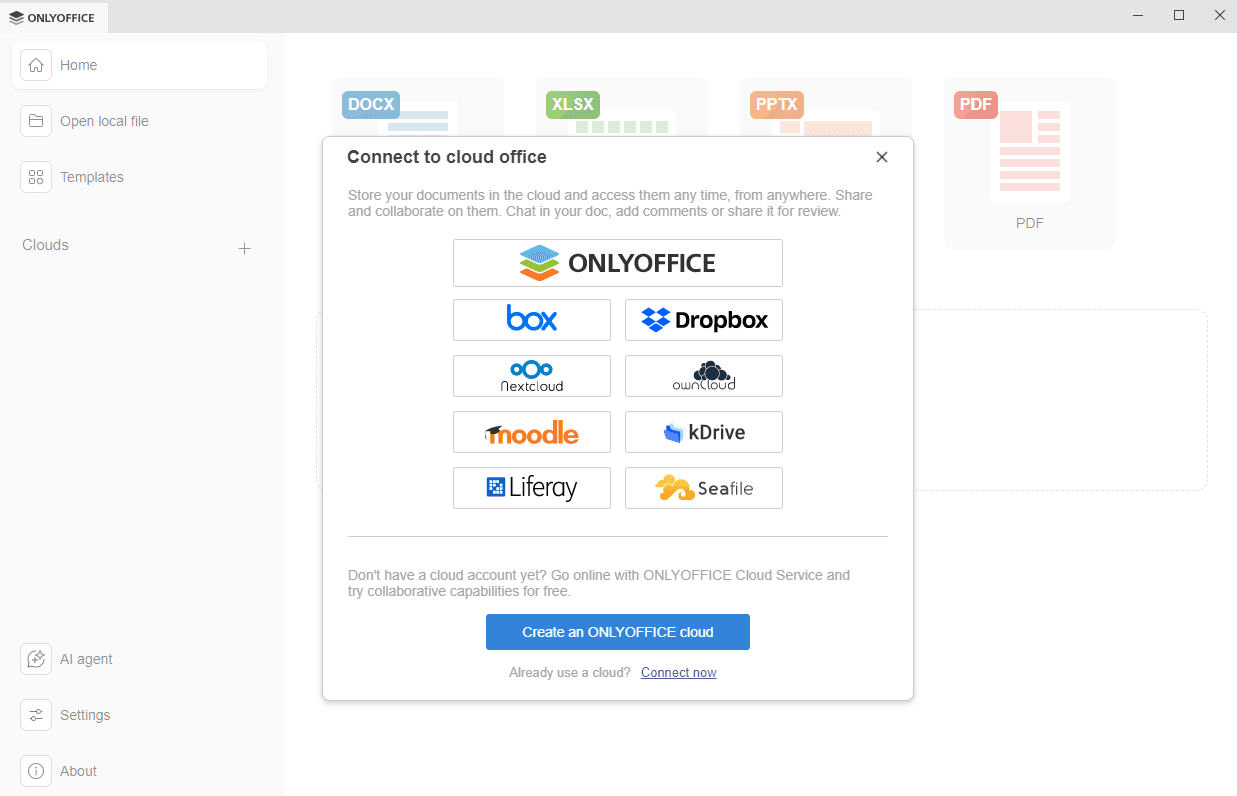
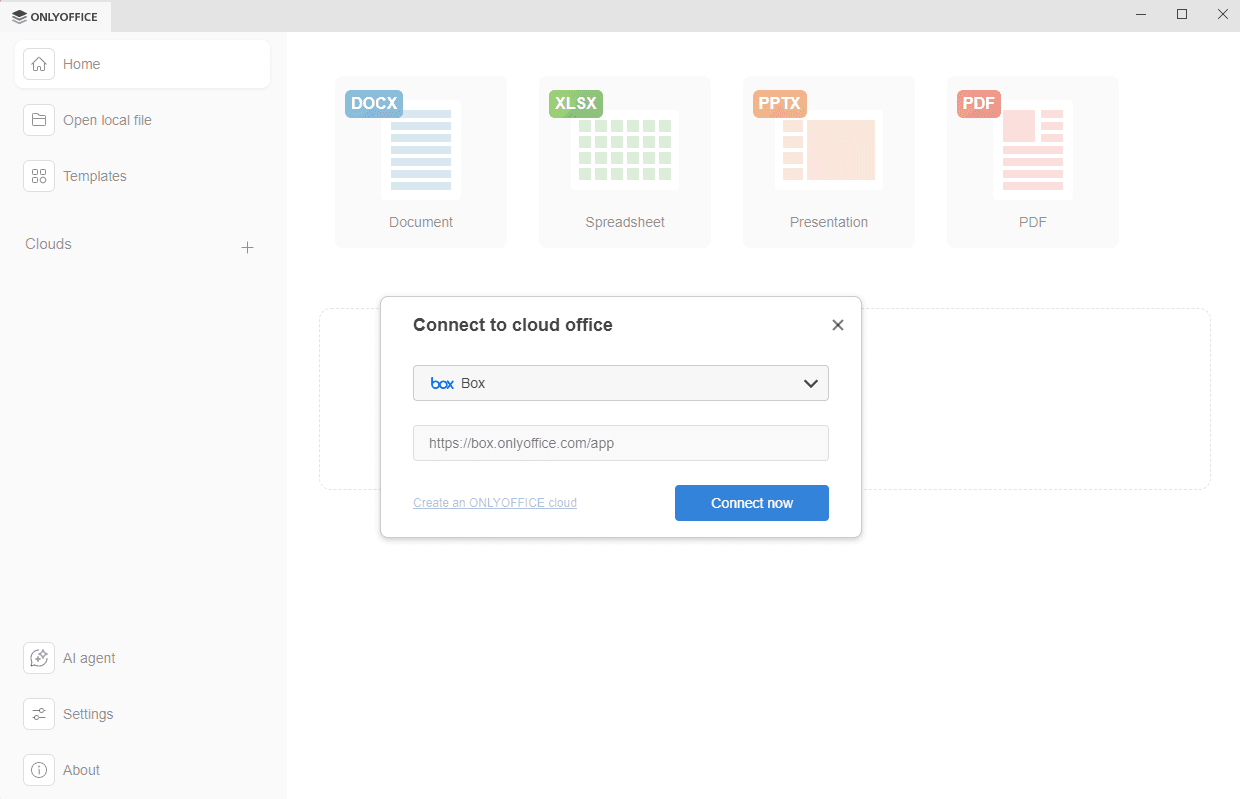
Once you click the Box cloud service button, the Connect to cloud office window will appear with Box preselected. If providers are already connected in the list, the welcome window (shown in the screenshot above) will not be displayed. Instead, the selection window with the list will open immediately (see the screenshot below).
If you choose the Connect now link instead, simply select Box from the drop-down menu. The Box service URL is already set, so you just need to click Connect now to continue.
A Box login page will appear in a new tab inside the Desktop Editors interface. Enter the email and password associated with your Box account, or select the Single Sign-On option if available. Then click the Authorize button.
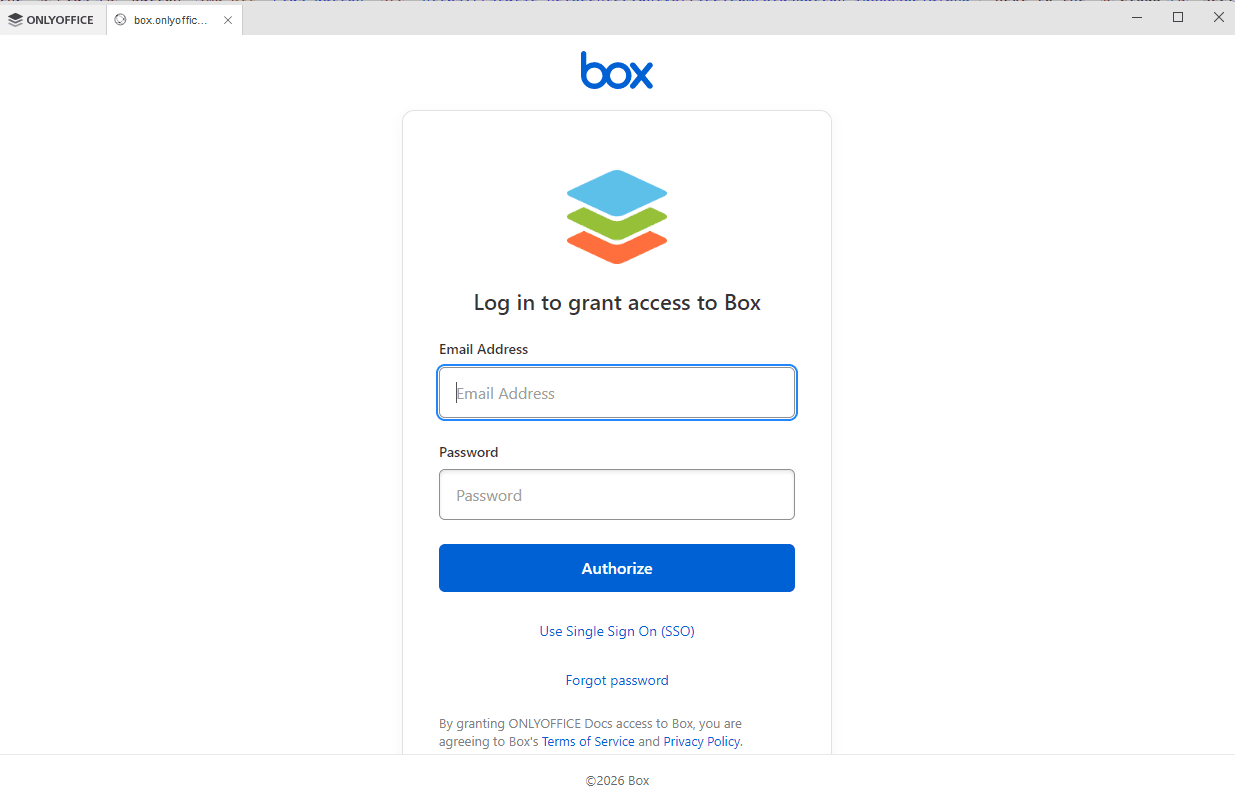
Now, grant ONLYOFFICE the access to your Box account.
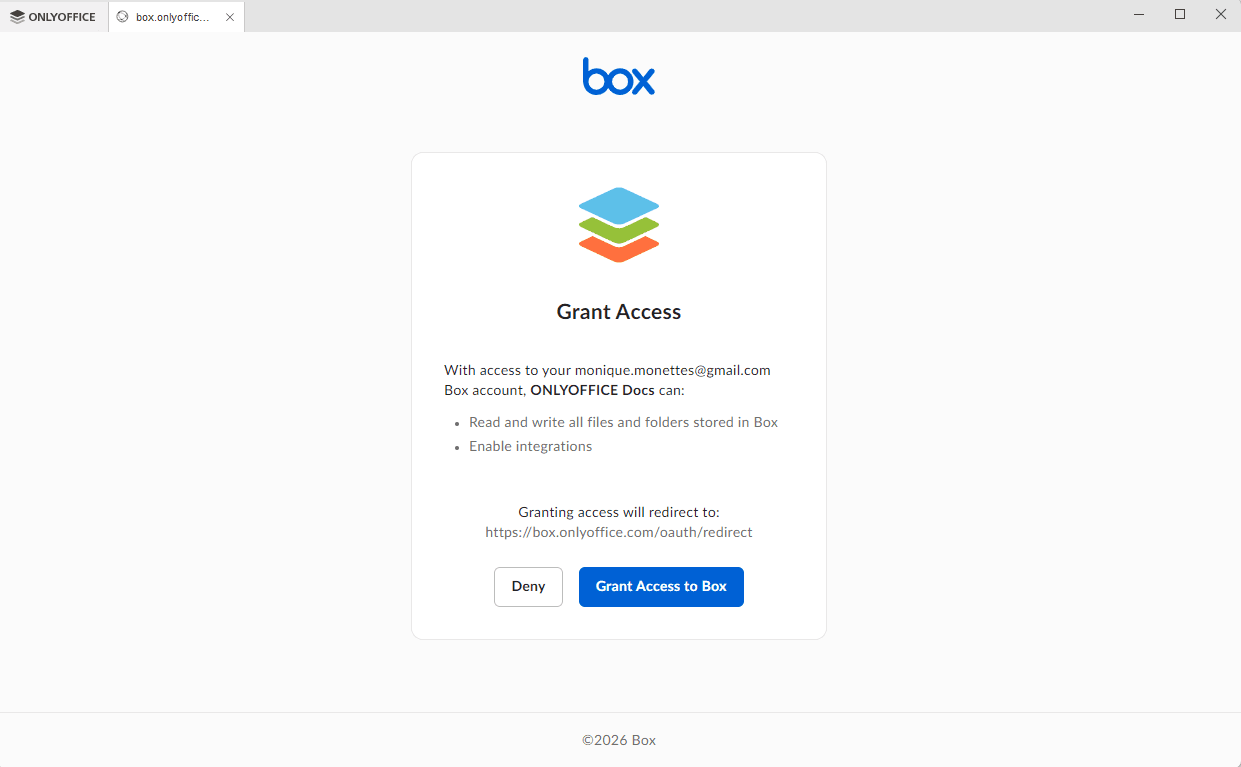
After clicking the Authorize button, you will need to complete a secondary verification step directly on the Box portal to confirm access to your files.
Step 2. Open your Box documents
Once the connection and any required portal verification are complete, the Box portal will open automatically within the Desktop Editors interface. From here, you can immediately access your files, open existing documents, create new ones, share them with others, and collaborate in real time.
In addition, your Box account will be listed in the Clouds section on the left-side panel. From there, you can reopen the Box tab at any time if needed, giving you quick access to all your files and folders without repeating the login process.
Step 3. Edit and collaborate on your files
After opening your document, you can use the full set of ONLYOFFICE editing tools. This includes advanced formatting options, working with tables and images, editing spreadsheets with formulas, and creating or updating presentations.
Step 4. Manage your connected accounts
ONLYOFFICE Desktop Editors also makes it easy to manage your connected cloud accounts. Once your Box account is added, it will remain visible in the Clouds section on the left-side panel.
By hovering over the account name and clicking the three-dot icon, you can access several options. You can open the account, log out if needed, or completely remove it from the list.
Get started now
Connecting your Box account to ONLYOFFICE Desktop Editors is quick and effortless, letting you edit, share, and collaborate on your documents directly from your desktop. With this integration, you combine the full power of a local office suite with seamless cloud access, keeping your workflow fast and organized.
Try it today and experience smoother editing, and complete control over your Box files without leaving the editors.
Create your free ONLYOFFICE account
View, edit and collaborate on docs, sheets, slides, forms, and PDF files online.