Running Remote ONLYOFFICE DocSpace MCP Server: what it means and how to get started
ONLYOFFICE DocSpace’s MCP Server is the component that turns DocSpace from a UI-only collaboration tool into an AI-driven, automatable solution. Recent updates make it trivial to run DocSpace MCP Server on a remote machine and let multiple apps, bots, or AI agents connect to it securely. This approach centralizes automation and simplifies integrations across teams and tools.
Below you’ll find what a Remote DocSpace MCP Server is, why you’d run it remotely, how to connect to one at a glance, security best practices, and practical use cases.
What is an MCP Server on a remote machine?
The Remote DocSpace MCP Server is simply the DocSpace MCP Server running on a server that’s reachable over HTTP. It exposes a set of MCP tools (file operations, room management, document generation, etc.) that clients: AI agents, automation scripts, or apps, can call over HTTP.
Why run the MCP Server remotely?
A remote MCP Server has several advantages in comparison to a local one. Here are some of them:
- Centralized maintenance. It reduces operational overhead, improves security and consistency, and speeds up updates and troubleshooting.
- Predictable workflows. With a remotely deployed MCP server, tool availability is centrally managed. The server owner decides which tools are exposed, ensuring a predictable experience for anyone connected to the server.
- Consistent automation for every team. Marketing, HR, product, dev, admin — everyone uses the same everyone uses the same set of tools.
- End-user friendly. No manual configuration translates into faster onboarding and fewer configuration errors.
How remote connections work
Connecting to a Remote DocSpace MCP Server is straightforward. You run the MCP Server on any machine accessible over HTTP: a cloud instance, a VM, or a container. Then you link it to your DocSpace.
After that, you simply share the MCP Server’s URL with your team or the tools that need access, using OAuth or API keys, and the MCP Server handles all communication with DocSpace on their behalf.
From that point on, they can perform tasks, upload files, create rooms, generate documents, or run automated workflows without any local installations or complex configuration. Everything flows through one central, secure service, a clean connection point that keeps your integrations simple, scalable, and easy to manage.
Architecture and supported transports
A remote MCP Server exposes the Model Context Protocol over one or more transports so AI clients can discover and call tools:
- Streamable HTTP, the recommended modern transport for streaming responses.
- Server-Sent Events (SSE), supported for legacy clients that rely on SSE.
Supporting both transports increases connection flexibility because it extends coverage to a broader range of clients without dropping support for legacy ones.
How to connect Public Remote MCP Server
The public instance is available at https://mcp.onlyoffice.com/mcp for clients that support modern Streamable HTTP transport and at https://mcp.onlyoffice.com/sse for clients that support only the legacy SSE transport. Prefer to use the Streamable HTTP transport whenever possible.
The public instance supports authentication using OAuth, API key, Personal Access Token (PAT), username/password pair, or raw “Authorization” header. Prefer to use OAuth authentication whenever possible.
The public instance provides access to all available tools by default. Tool selection can be customized using query parameters or custom headers. However, prefer to use the MCP client interface for tool configuration when supported.
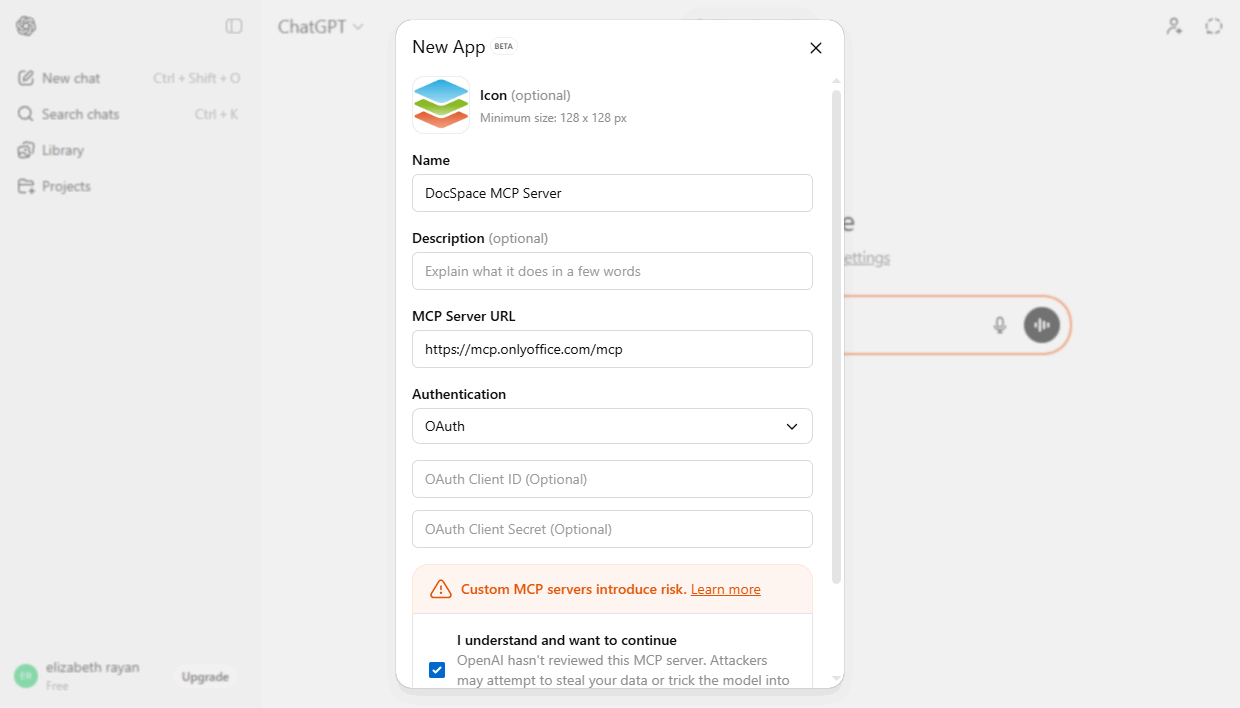
To make things practical, here are simple examples that show how clients connect to a public remote MCP Server. These reflect the authentication methods currently supported.
OAuth with Public App. Connect using the public OAuth application without custom credentials: https://mcp.onlyoffice.com/mcp
OAuth with Custom App. Connect using your own OAuth client ID and client secret: https://mcp.onlyoffice.com/mcp (Client ID and Secret required)
API Key with Headers.– Connect using an API key and base URL provided in custom headers:
- X-Mcp-Base-Url: https://your-instance.onlyoffice.com/
- X-Mcp-Api-Key: sk-a499e…
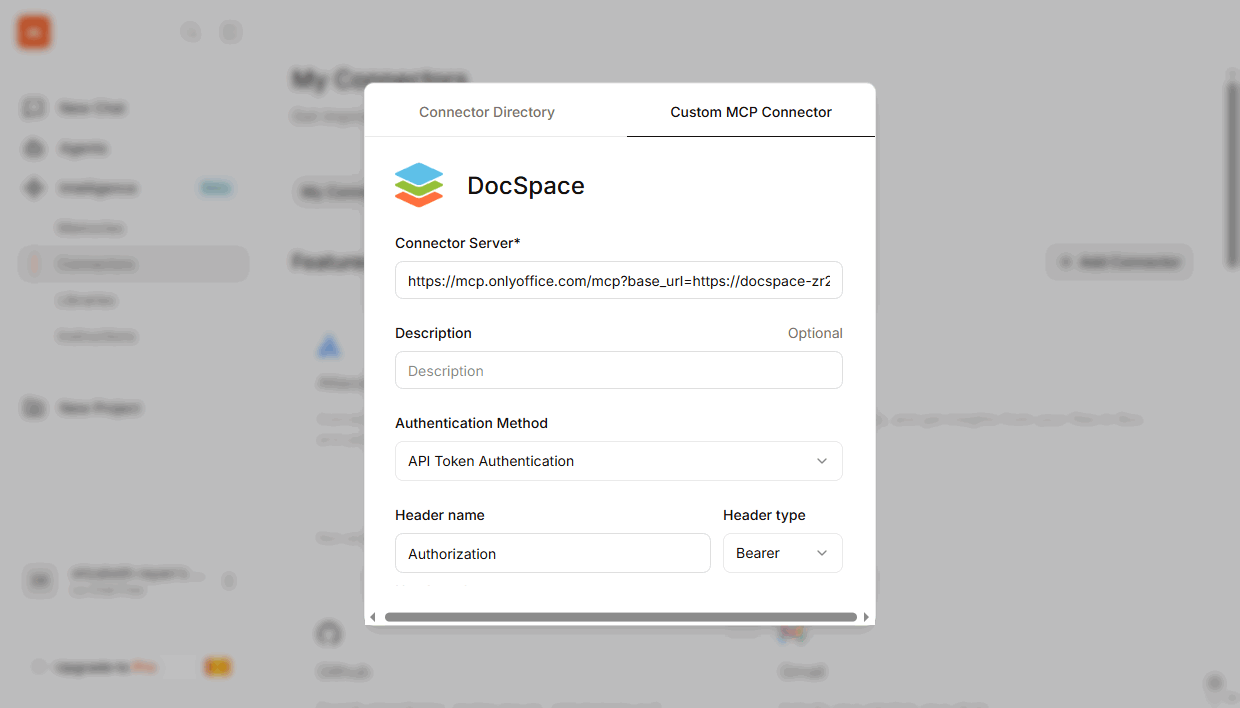
API Key with Authorization Header. Connect using an API key in the Authorization header and base URL in a query parameter:
- https://mcp.onlyoffice.com/mcp?base_url=https://your-instance.onlyoffice.com
- Authorization: Bearer sk-a499e…
Username and Password in URL. Connect using URL-encoded credentials and base URL in a query parameter:
- https://henry.milton%40onlyoffice.com:password@mcp.onlyoffice.com/mcp?base_url=https://your-instance.onlyoffice.com/
This provides flexible, secure options to authenticate your tools or workflows with the public MCP Server instance.
Try workflow automation in ONLYOFFICE DocSpace
Running the ONLYOFFICE DocSpace MCP Server remotely brings DocSpace into the world of programmable collaboration. With OAuth security, flexible hosting, and easy connections for tools and agents, MCP becomes a reliable automation layer that can serve your entire organization.
Whether you’re a small team or a large enterprise, MCP Server allows you to streamline work, automate repetitive tasks, and enhance your DocSpace experience.
Create your free ONLYOFFICE account
View, edit and collaborate on docs, sheets, slides, forms, and PDF files online.